

 De
De  Es
Es  Fr
Fr  Pt
Pt 

-
-
-
-
-
-
-
-
-
-
-
-
-
-
-
-
-
-
-
-
-
-
-
-
-
-
-
-
Find and Replace Text
-
-
-
-
-
-
-
-
-
-
-
-
-
-
-
-
-
-
-
-
-
-
-
-
-
-
-
Find and Replace Text
 Menu: Edit –
 Find and Replace …
Toolbar: Text –
Context menu of the drawing area Find and Replace…
 Hot keys: CTRL+F
Command line: FIND
The Find and Replace tool is used to find and replace string values in drawing objects or in the object database of some vertical applications (the Find and Replace in Database command in the Object Wizard dialog box).
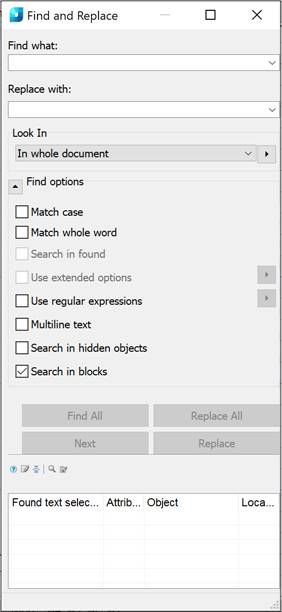
The command opens the Find and Replace dialog box:
|
Options |
Description |
|
Find what: |
In the Find what field, type the text to be searched for. |
|
Replace with: |
In the Replace with field, type the text that is required to replace the found lines. |
|
Look in |
Set the Look in parameter. The following options are available: · In whole document · In current space · In current selection |
|
|
The button to define the search area. The button action depends on the context of the Find and Replace command: if the command is called from the Object Manager, the Quick Selection window opens; if the command is called from the Object Wizard dialog (the Search and Replace command in the database), the database section selection window opens. |

|
Find options
|
This button maximizes/minimizes the options list. |
|
Match case: |
If this is checked, the search is made to match the case of the letters. |
|
Match whole word: |
If this is checked, the search is made for whole words; that is letter combinations separated by stops or spaces. |
|
Search in found: |
Enables/Disables the search in found. This option is accessible after the line search has been made. It restricts the search range. |
|
Use extended options: |
To search in the object database. The option is available when searching the object database of some vertical applications. Click the
|
|
Use regular expressions |
Enables/Disables the mode for specifying search patterns using regular expressions. Regular expressions can be entered independently or using a list. The
When you place the cursor on a list line, a tooltip appears with a detailed explanation. You can use multiple regular expressions together. An expression is entered in the search field by left-clicking on the expression from the list. |
|
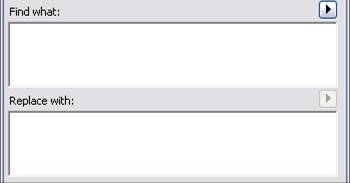
Multi-line text: |
Switches on/off the multi-line text search mode. When the mode is on, the Find what and the Replace with fields take the form:
|
|
Search in hidden objects |
Searches text in hidden objects. |
|
Search in blocks |
Searches text in blocks. |
|
|
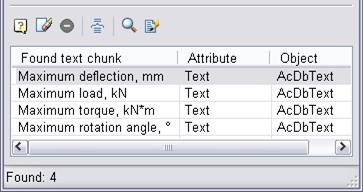
Starts the search procedure. The search result will be shown in the table:
|
|
|
Replaces all found fragments with the new value. |
|
|
Starts the process of consecutive replacement of the found fragments. |
|
|
Passes the next found fragment in the list without replacing it with the new value. The Next button allows you to move the active row along the table, skipping the next found fragment in the list without replacing it with a new value. |
|
|
Click this icon to clear the list of found text fragments. |
|
|
Click this icon to group results by objects. |
|
|
Click this icon to show the selected text fragment in the table on the drawing or in the database of objects. |
|
|
Click this icon to open the Text settings dialog box to edit the found text fragment on the drawing. |


 button opposite the parameter and in the window that appears, select advanced search areas.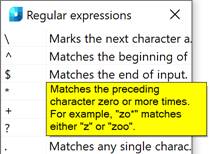






|
|
Note |
|
Left-click on the headings of the table columns of the search results to sort the found text fragments. |

|
|
|
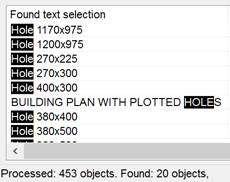
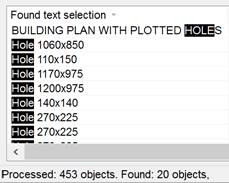
To find and edit the text fragment on the drawing:
1. Run the command.
2. In the Find what field: enter the search phrase.
3. Select the Look in area from the list, or using the additional  button.
4. Select the search options.
5. Click the Find all button. The search process will start, the result of which will be displayed in the table.
6. In the search results table, select the required line:
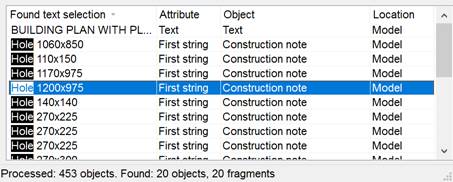
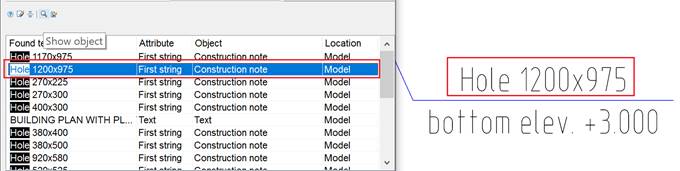
7. Double click on the required line, or click the Show object  icon, or select the Show object command from context menu:
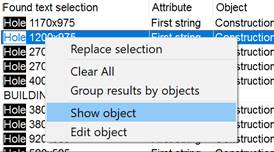
8. As a result, there is auto-panning of the found fragment that contains the selected text on the drawing:
9. Click the Edit object  icon or select the Edit object command from the context menu to open the Text settings dialog box:
10. Type the required changes and click OK.
To replace the text:
1. Search for objects to be replaced.
2. In the Replace with: field, enter the text string with which you want to replace the found strings.
3. Click the Replace All or Replace button.