De
De  Es
Es  Fr
Fr  Pt
Pt 

-
-
-
-
-
-
-
-
-
-
-
-
-
-
-
-
-
-
-
-
-
Quick Selection of Objects
-
-
-
-
-
-
-
-
-
-
-
-
-
-
-
-
-
-
-
-
-
-
-
-
-
-
-
-
Quick Selection of Objects
 Ribbon: Home – Utilities >
  Quick Selection
Menu: Edit – Quick Selection…
Properties bar – 
Context menu in the graphic area of the drawing: Quick Selection…
 Command line: QS, QSELECT
Using the Quick selection command you can select objects using specified conditions.
In the Quick Selection dialog box, you can adjust the search conditions:
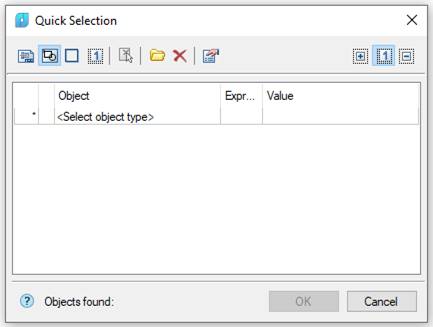
Parameters:
Search options:
|
|
The search is performed in the whole document |
|
|
The search is performed in the current space |
|
|
The search is performed in the selected rectangular area in the drawing |
|
|
The search is performed among selected objects in the drawing |


If In bounding box or In current selection is selected, the Quick Selection dialog box temporarily closes to allow the rectangular area to be specified on the screen or for objects to be selected. The Set selection button becomes available after the area is specified or the objects are selected; using this button you can select a new rectangular area or change the current set of objects.
|
|
Include frozen and invisible layers – allows to search objects on frozen and invisible layers |

Actions with selection:
|
|
Found objects will be added to the selected objects on the drawing. |
|
|
Objects corresponding to the specified search conditions are selected in the drawing, other objects are deselected |
|
|
If objects were selected, they become deselected. |


Managing filter templates:
|
|
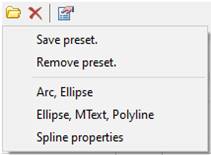
The button to call template managing functions and the list of saved templates. |
|
|
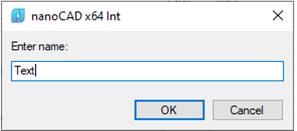
Save preset
|
Saves the preset selection conditions as a named template.
|
|
|
Remove preset
|
Removes a preset selected in the list.
The Clear option deletes all filter templates |
|
|
|
Clears all conditions set in the Quick Selection dialog box. |
|

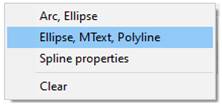

To add a condition for object search:
1. Click in the <Select object type> field and choose the required object type from the list:

To reject the selection, click on None.
2. There is a list of parameters of all objects belonging to this type and to the specified selection area:
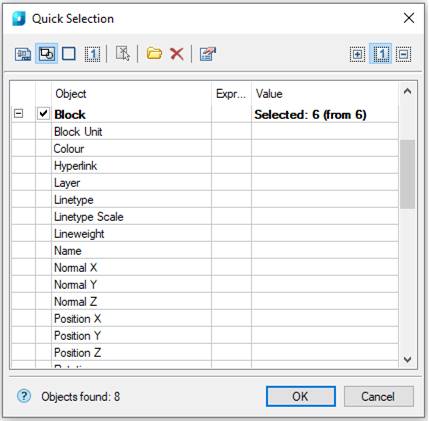
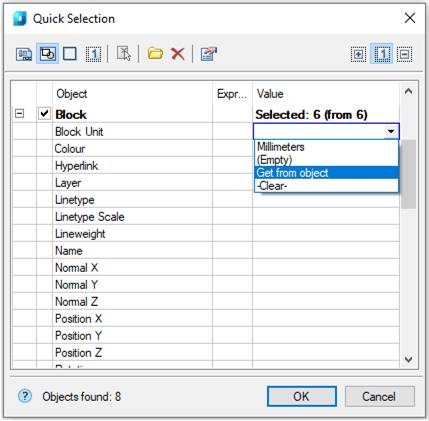
3. Select the value of the required search parameter in the Value column:
4. Select a logic search condition in the ExprType column:
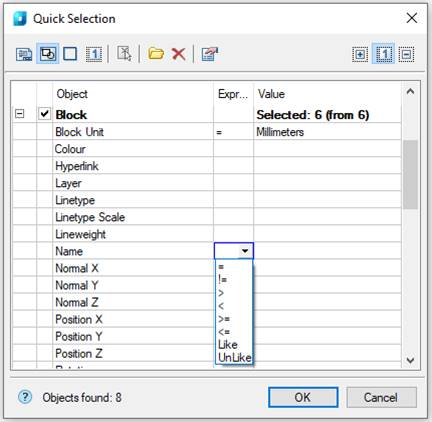
Available logic conditions for search:
|
= |
equals |
|
!= |
does not equal |
|
< |
less |
|
> |
more |
|
>= |
not less |
|
<= |
not more |
|
Like |
Search of substring. Searches for objects whose parameter value contains the substring specified in the ExprType column. |
|
Unlike |
Search of substring. Searches for objects whose parameter value does not contain the substring specified in the ExprType column. |
|
|
Note |
|
For every object type you can set numerous search conditions using one or several parameters. |

5. To add another type of object, click on the <Select object type>bottom field:
The number of objects satisfying the search conditions is displayed in the bottom part of the dialog box: Object found: 3.
Quick select functional bar is implemented for more convenient work.
Ribbon: Manage – Palettes >  Selection…
Menu: View – Toolbars > Functional > Selection
Command line: TABS > Selection
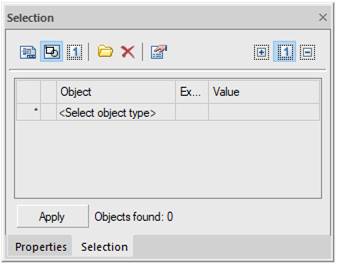
Selection bar functions like Quick selection dialog box.