


 De
De  Es
Es  Fr
Fr  Pt
Pt 

-
-
-
-
-
-
-
-
-
-
-
-
-
-
-
-
-
-
-
-
-
-
-
-
-
-
-
-
-
-
-
-
-
-
-
-
-
Mesh Sealing Holes
-
-
-
-
-
-
-
-
-
-
-
-
-
-
-
-
Mesh Sealing Holes
 Ribbon: Topoplan – Modify TIN >
  Mesh Seal Holes
Menu: Topoplan – Modify TIN >  Mesh Seal Holes
Toolbar: Modify TIN > Mesh Seal Holes
 Command line: NG_MESH_SEAL_HOLES
If during the creation of a TIN surface or in the process of its editing surface holes were formed, the command allows filling them with missing faces by specifying an edge on the hole boundary.
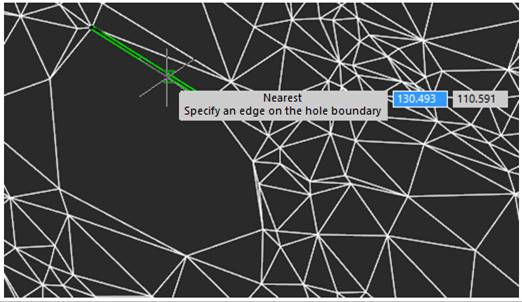
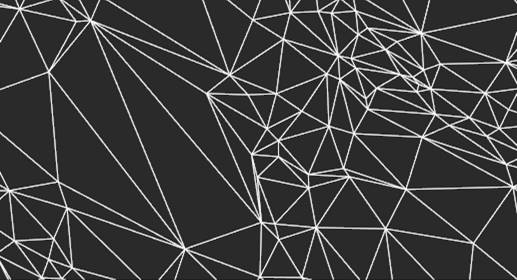
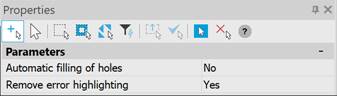
The command options are specified in the Properties bar.
|
Automatic filling of holes |
Yes – After the settings are applied, the selected areas should be filled with triangles, and new triangles should be added in the SubMesh or PolyFace Mesh. No – After the settings are applied, the user shall specify the edge of a hole/crossing to be filled with triangles (old variant of the command work) |
|
Remove error highlighting |
When the command is run, mesh errors, such as intersections and holes, are detected, and 3D Polylines are created at the locations of the errors. Yes – After the command completes, the created 3D Polylines are deleted. No – After the command completes, the created 3D Polylines are saved. |