


 De
De  Es
Es  Fr
Fr  Pt
Pt 

-
-
-
-
-
-
-
-
-
-
-
-
-
-
-
-
-
-
-
-
-
-
-
-
-
-
-
-
-
-
-
-
-
-
-
-
-
-
-
-
-
-
Editing Label Styles of Geopoints
-
-
-
-
-
-
-
-
-
-
-
Editing Label Styles of Geopoints
Editing label styles is started by a double clicking the desired label style of a geopoint in the Drawing Explorer. The options are set in the Properties bar.
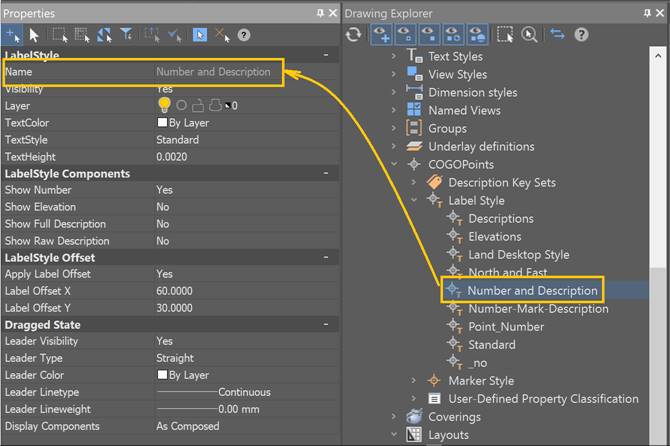
Options:
Label Offset
|
Apply label offset |
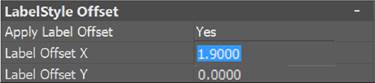
Offsets the geopoint label relative to its marker. When selecting Yes, fields for specifying the label offset along each axis appear. The values are specified in drawing units.
These fields are only for implementing a new offset. They do not display the current offset values of the label. Even if the label was previously offset relative to the marker, the offset values in the X Offset and Y Offset fields will be 0. To reset the offset and return the label back to the marker’s base point, set the Apply Label Offset parameter to Yes again and apply the changes with zero offset parameter values. |
Leader
|
Visibility |
Whether the leader line should be visible after dragging from its original position.
|
|
Leader type |
Form of the leader line: straight or spline.
|
|
Leader color |
Color of the leader. |
|
Leader linetype |
Linetype of the leader. |
|
Leader lineweight |
Lineweight of the leader. |
|
Components display |
Determines how the label’s contents are displayed after being dragged from the default position. Configuration Preserved: Labels retain their initial layout and orientation settings. When this value is selected, all other properties in the Motion State Components category will not be editable. Grouped Text: Converts labels according to the Motion State Components category settings.
All boxes, lines, ticks, and directional arrows are deleted. Text components are arranged as fractional text vertically in the order specified by the label style. |


Command prompts:
|
Change parameters in ‘Properties’ window and choose ‘OK’ to save changes or ‘Cancel’ to discard any changes <OK> or [OK/Cancel]: |
Yes – all changes to label style properties made in the Properties bar will take effect. Cancel – all changes to label style properties made in the Properties bar during this session of the command work will be cancelled. |
|
|
Note |
|
Unused geopoint label styles can be deleted. Once a style is in use, it cannot be deleted. |
