De
De  Es
Es  Fr
Fr  Pt
Pt 

-
-
-
-
-
-
-
-
-
-
-
-
-
-
-
-
-
-
-
-
-
-
-
-
-
-
-
-
-
-
-
-
-
Point Cloud Info
-
-
-
-
-
-
-
-
-
-
-
-
-
Point Cloud Info
 Ribbon: Point Clouds – Calculations and Info >
  Point Cloud Info
Menu: Point Clouds – Calculations and Info > About Cloud
Toolbar: Point Clouds > Point Cloud Info
Properties toolbar – Misc – Point cloud info >  button
 Command line: NPC_INFO
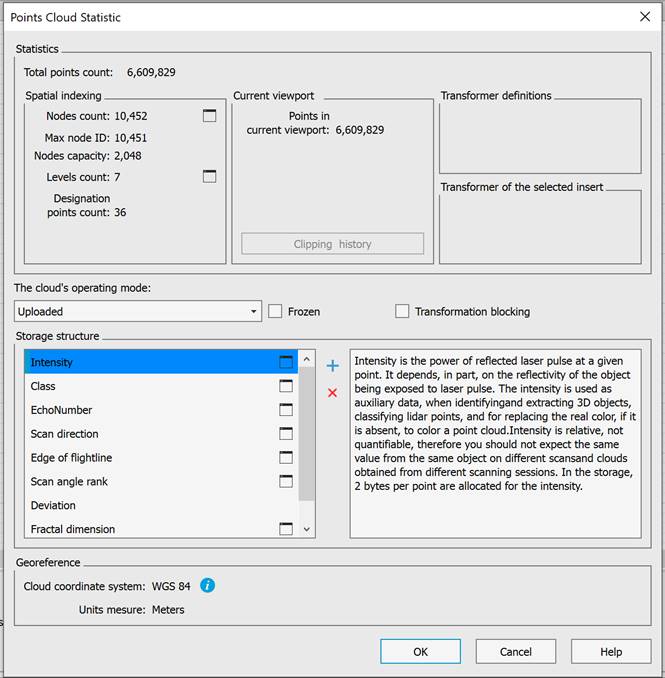
Displays statistic information about point cloud and excludes/includes certain point cloud attributes.
Statistics displays the number of cloud points, nodes and levels in the point cloud structure tree, their maximum and designation.
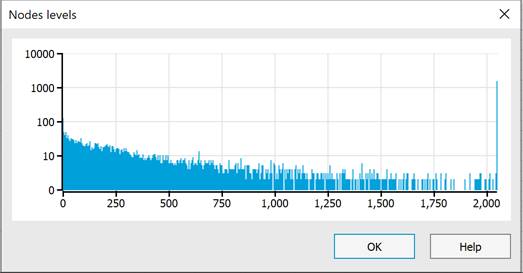
The  button next to the Nodes count option opens a diagram of the distribution of points by nodes of the cloud tree.
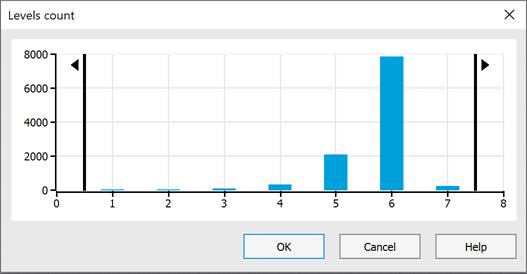
A diagram of the distribution of nodes (vertical diagram) by levels of the structured cloud tree (horizontal diagram) can be viewed by clicking the button next to the Levels count option. By moving the right or left borders on the distribution diagram, you can cut off the display of cloud points belonging to certain levels of the hierarchical structure. On the drawing, such points will disappear.
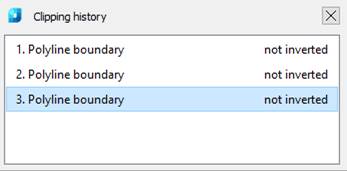
The Points in current viewport parameter shows how many cloud points are actually displayed in the current view, including all clippings and sections. The history of clippings and sections of the point cloud can be viewed by clicking the Clipping history button.
The Storage structure section displays information on the presence or absence of certain attributes of points of the could imported into a document.
The list contains a list of existing cloud point attributes. The window on the right displays a description of the selected attribute.

The  button unloads (deletes) the selected attribute from the cloud. This removes all information on this attribute from the point cloud in the document. After unloading, the possibility to carry out operations using the unloaded attributes, including coloring the point cloud by this attribute, is lost.
|
|
Note |
|
Attributes unloaded only from the current document. External file with point cloud is unchanged. |

|
|
|
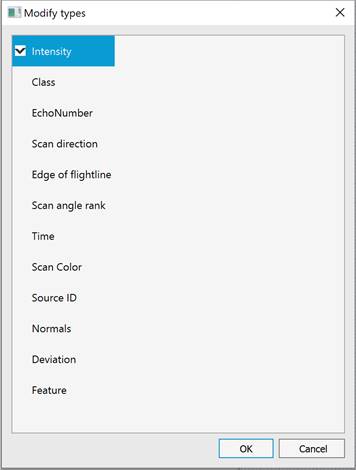
It is possible to add missing attributes with the  button and then select them from the list in the Add metadata types dialog.
However, it should be understood that newly created attributes do not carry any values.
So, unloading such an attribute as Intensity from the cloud will lead to a complete loss of intensity values for the points of this cloud in the document.
If this attribute is later added with the button, the intensity values will not be restored.
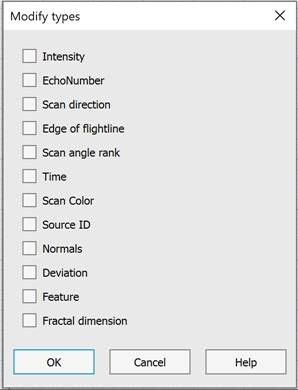
If originally the cloud did not have Class attribute, enabling the create layer box will automatically create a new layer with the name Created, never classified (code 0) and assign class 0.to all cloud points

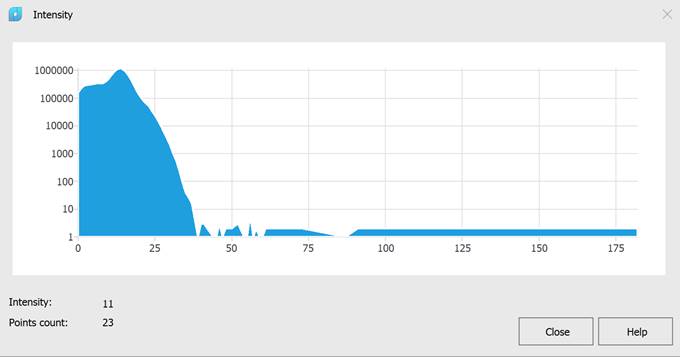
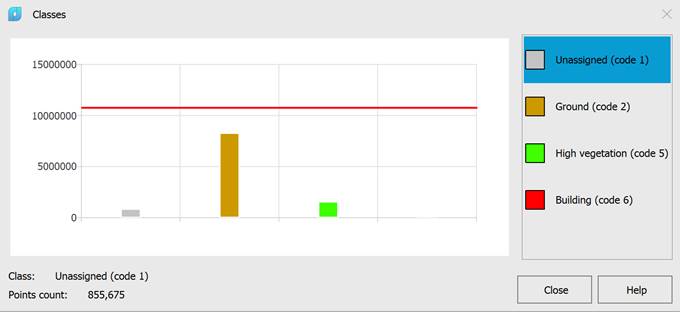
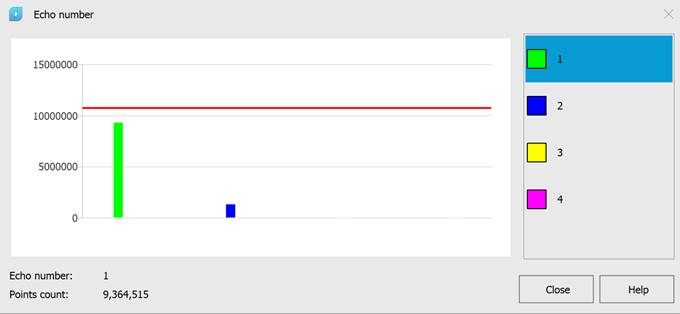
The  button next to some attributes allows you to view the diagram of the distribution of the values of this attribute. This is possible for such attributes as Intensity, Class, Echo number, Scan direction, Edge of flightline, Scan angle rank, Source ID andFractal dimension. If there are no attribute values, the chart is not displayed.
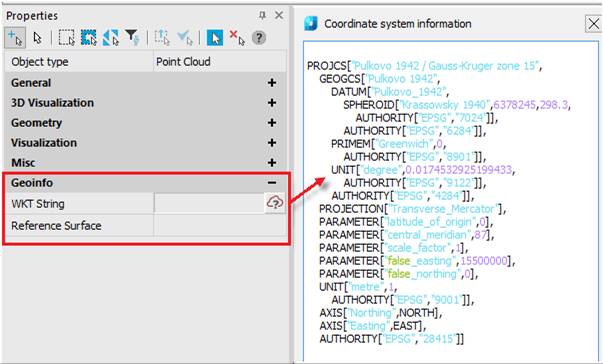
Point clouds imported from some types of formats (LAS, LAZ) can be geo-referenced. In the Georeference section, by clicking the Georeference information button, you can view detailed information about the coordinate system and georeference of the cloud.
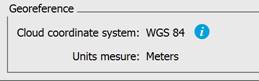
The same information for the cloud selected in the workspace can be viewed in the Properties bar in the Geoinfo section.