

 De
De  Es
Es  Fr
Fr  Pt
Pt 

-
-
-
-
-
-
-
-
-
-
-
-
-
-
-
-
-
-
-
-
-
-
-
-
-
-
-
-
Editing Text Objects
-
-
-
-
-
-
-
-
-
-
-
-
-
-
-
-
-
-
-
-
-
-
-
-
-
-
-
Editing Text Objects
 Ribbon: Annotate - Text >
  Edit Texts
Menu: Modify – Object > Text > Edit
Toolbar: Modify Object –
Toolbar: Text –
 Command line: DDEDIT, ED
The command for editing single-line and multiline text objects.
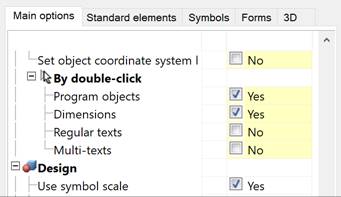
The command can also be called by double-clicking the left mouse button on a text object if the corresponding parameters are set to No in the nanoCAD Design Settings dialog box (PARAMS):
Main options tab, Edit – By double-click section Regular texts and/or Multi-texts parameter.
You can also start the Edit command from the context menu previously selected the text line in the document.
The command allows you to edit the content of a single-line text directly on the drawing. The content of the selected single-line text is selected and highlighted automatically to completely edit the text. If necessary, you can insert or delete single characters or fragments within the line. For more convenient editing, use the context menu:
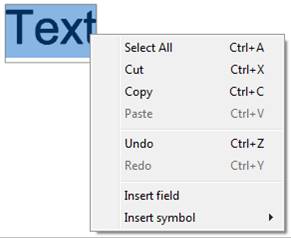
Context menu options:
|
Select all |
The entire text line will be selected. |
|
Cut |
Cuts the selected text to the clipboard. |
|
Copy |
Copies the selected text to the clipboard. |
|
Paste |
Pastes text from the clipboard. |
|
Undo |
Undoes the last action. |
|
Redo |
Redoes the previously undone action. |
|
Insert field |
Inserts a field. |
|
Insert symbol |
Inserts a symbol. Available symbols: · Degrees (%%d) · Plus/Minus (%%p) · Diameter (%%c) |
Pressing CTRL+ENTER or clicking on the drawing outside the text line field confirms the changes made and ends editing.
To complete editing without saving changes, press ESC.
|
|
Note |
|
Pressing ENTER splits the text string into two lines, each of which is converted into a separate text object upon the command completion. |

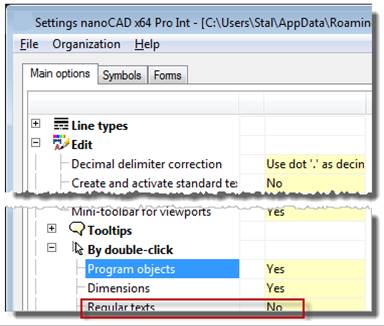
You can also edit the single-line text in the drawing by double-clicking (if No is chosen for the Regular texts option of the Settings nanoCAD Int dialog box on the Main options tab of the By double-click section (the Tools menu – Design Settings)).
Press CTRL +ENTER or click on the drawing out of the single-line text to confirm changes and finish the editing.
To finish the editing without saving changes, press ESC.
|
|
Note |
|
Press ENTER to split the single-line text into two lines, each of which is transformed into a separate text object after the command end. |
