

 De
De  Es
Es  Fr
Fr  Pt
Pt 

-
-
-
-
-
-
-
-
-
-
-
-
-
-
-
-
-
-
-
-
-
-
-
-
-
-
-
Using Drawing Explorer Bar to Work with Groups
-
-
-
-
-
-
-
-
-
-
-
-
-
-
-
-
-
-
-
-
-
-
Using Drawing Explorer Bar to Work with Groups
The Drawing Explorer functional bar allows for full-value work with groups.
A group can be selected in the following ways:
· double-clicking on the group in the Drawing Explorer tree;
· the Select command in the group’s context menu;
· The  Enable Selection button and left-clicking the group in the Drawing Explorer tree.
A group is selected with simultaneous scaling and positioning in the center of the screen by clicking the  Enable Zoom and Selection button and left-clicking the desired group in the Drawing Explorer tree.
In all cases, all objects in the group are selected, regardless of the value of the PICKSTYLE variable.
Zooming and positioning a group in the center of the screen (without selecting) is performed using the Zoom command in the group context menu.
Group creation commands are available in the context menu of the Groups section:

For quick creation of a group
1. Select objects on the screen.
2. In the context menu of the Groups section, select the Create group from selection. A group will be created and named *AN, where N is a sequence number of the created group.
To create an anonymous (nameless) group:
1. Select objects on the screen.
2. In the context menu of the Groups section, select the Edit… item. An anonymous group will be created and named *AN, where N is a sequence number of the created group.
To start the GROUP command and specify the groups’ name and description:
1. In the context menu of the Groups section, select the Edit… item. The command line will prompt to create a group: Select objects or [?/Name/Description]
2. If necessary, specify the name and description.
3. Select objects on the screen and press ENTER to confirm the selection.
Editing commands are available in the context menu of the selected group:
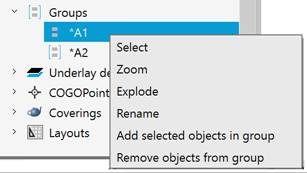
|
Select |
Selecting the group’s objects. |
|
Zoom |
Zooming and panning to the group in the drawing. |
|
Explode |
Removing the selected group. Objects included in the group are not removed from the document. |
|
Rename |
Renaming the group. |
|
Add selected objects in group |
Adding preselected objects in a group. |
|
Remove objects from group |
Removing objects from the group selected in the workspace. |