


 De
De  Es
Es  Fr
Fr  Pt
Pt 

-
-
-
-
-
-
-
-
-
-
-
-
-
-
-
-
-
-
-
-
-
-
-
-
-
-
-
-
Text Mask
-
-
-
-
-
-
-
-
-
-
-
-
-
-
-
-
-
-
-
-
-
-
-
-
-
-
-
Text Mask
 Ribbon: Annotate – Text >
  Text Mask
Menu: Modify – Advanced Tools > Text Mask
 Command line: TEXTMASK
The command is designed to apply masking behind text:
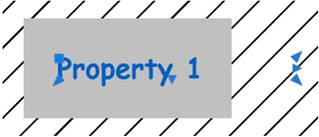
By default, the command parameters are set in the Extended Properties toolbar:
· Specify entity type to use for mask – a Wipeout object (a rectangle filled with background color) or a Solid object can be used as a mask.
· Enter offset factor relative to text height – specifies the distance the masking object is offset from the text.
· Color (only for Solid entity type) – specifies color of the masking object.
You can set masking parameters using the command line. To do this, set the CMDDIA system variable to 0.
|
TEXTMASK command prompts |
Description |
|
Current settings: Offset factor = 2, Mask type = Solid, Mask color = 7 |
Displays previously set parameters. |
|
Select text object to mask: |
Select Mask type or Offset, if you nee to change the parameters. When selecting Solid mask type, the Select color dialog will be shown on the screen to specify the color of masking object. If you don’t need to change any settings, select single-line and/or multi-line text objects. Press ENTER. The command line displays the result: 5 text items have been masked with a Solid |
When executing the command, the display of the masking border is disabled for masked objects: WIPEOUTFRAME = 0 (the borders are not displayed or printed).
To remove the masking, use the text unmasking command (TEXTUNMASK).