

 De
De  Es
Es  Fr
Fr  Pt
Pt 

-
-
-
-
-
-
-
-
-
-
-
-
-
-
-
-
-
-
-
-
-
-
-
-
-
-
-
-
-
-
-
-
-
-
-
-
-
-
-
Texturing and Calculation
-
-
-
-
-
-
-
-
-
-
-
-
-
-
-
Texturing and Calculation
 Ribbon: Topoplan – Texturing and Calculation >
  Flat Texture Overlay
Menu: Ground – Textures >  Flat Texture Overlay
Toolbar: Textures and calculations > Flat Texture Overlay
 Command line: NG_ORTHO_TEXTURE
Using this command, you can create a textured surface if the drawing contains a point cloud with the can Color attribute (its display should be enabled) and a surface created from this point cloud. The command allows you to create a photorealistic image of the earth model.
After running the command, specify the Submesh object in the drawing.
The command options are specified on the Properties toolbar.
Options:
|
Texture size |
Set in pixels. |
|
Max stretch |
Sets the maximum texture stretch value when projecting onto inclined surfaces. If the texture stretch exceeds this value, a separate sub-texture is created in the texture atlas. |
|
Format |
Possible formats are BMP, JPG, PNG, TIFF or Embedded. |
|
From the ground |
Yes – the color of cloud’s point will be projected onto the surface, as if looking from the ground. If No is selected, the color will be projected as if looking from above |
Command prompts:
|
Apply changes? <Yes> or [Yes/No]: |
Yes – the texture overlay will be performed with the current settings. No – if the settings have been changed, they are not saved. The texture overlay will be performed with the settings that were displayed immediately after running the command. |
|
Mesh before the texture overlay |
Mesh after the texture overlay |
|
|
|
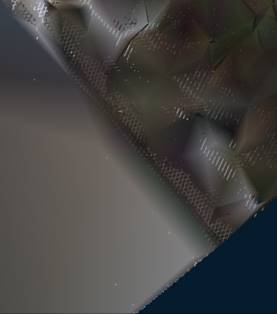
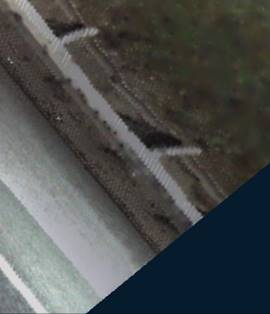
After removing the point cloud from the drawing, the surface preserves the texture:
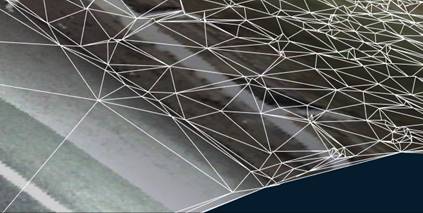
To display the overlay texture, set the Realistic or X-Ray visual style, or a custom style in which texture display is enabled in the face settings.