


 De
De  Es
Es  Fr
Fr  Pt
Pt 

-
-
-
-
-
-
-
-
-
-
-
-
-
-
-
-
-
-
-
-
-
-
-
-
-
-
-
-
-
-
-
-
-
-
-
-
-
Combining Surfaces
-
-
-
-
-
-
-
-
-
-
-
-
-
-
-
-
Combining Surfaces
 Ribbon: Topoplan – Modify TIN >
  Combining surfaces
Menu: Topoplan – Modify TIN > Combining surfaces
Toolbar: Modify TIN > Combining surfaces
 Command line: NG_MESH_JOIN
The command combines two surfaces into one by rebuilding triangles on the surface boundary.
The command parameters are set in the Properties bar.
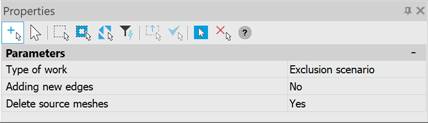
|
Type of work |
Exclusive scenario – As a result of the action, a single triangulation is built, including all triangles from both groups that do not overlap. If the triangles overlap, then only triangles from the secondary network are included in the new grid. Additive scenario – As a result of the action, a single triangulation is built, including all triangles from both groups. If the triangles do not overlap, then additional connecting triangles should be created between them, connecting the two triangulations into one. If the triangles overlap, then in the overlap zone, the triangulation is built according to the rule - if a point forming a triangle from the secondary triangulation falls into the field of a triangle from the main triangulation, then it is included in the triangulation according to the point addition algorithm. |
|
Adding new edges |
Yes – Add edges. No – Do not add. |
|
Delete source meshes |
Yes – Delete source mesh. No – Do not delete. |
You can combine several surfaces in sequence. Pressing the ESC key terminates the command .
|
|
Note |
|
Combining meshes with structural lines will be implemented in the next version. |
