


 De
De  Es
Es  Fr
Fr  Pt
Pt 

-
-
-
-
-
-
-
-
-
-
-
-
-
-
-
-
-
-
-
-
-
-
-
-
-
-
-
-
Alternative Editing of Text Objects
-
-
-
-
-
-
-
-
-
-
-
-
-
-
-
-
-
-
-
-
-
-
-
-
-
-
-
Alternative Editing of Text Objects
An alternative command for editing single-line and multiline text objects, allowing you to edit not only the text content, but also some of its parameters.
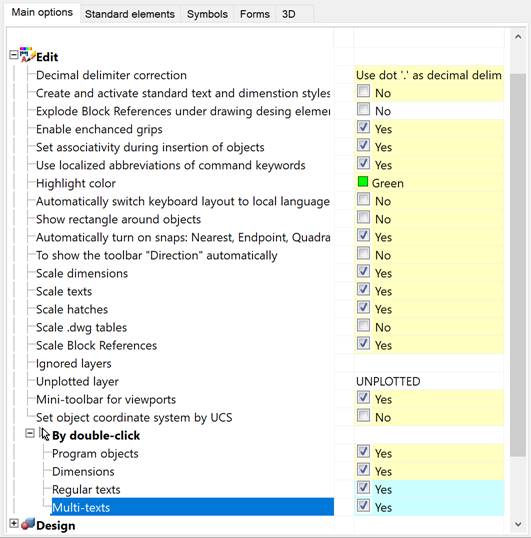
The command becomes available if the Yes value is set for the corresponding parameters in the Settings nanoCAD (PARAMS) dialog box: Main options tab, Edit section – By double-click the Regular texts and/or Multi-texts parameter.
The command can be called in one of the following ways:
· by double-clicking the left mouse button on a text line,
· by placing the mouse cursor over the text and pressing the right mouse button,
· by the EDIT and FEDIT commands when specifying a text object.
When editing a single-line or a multi-line text, the Text settings dialog box opens:
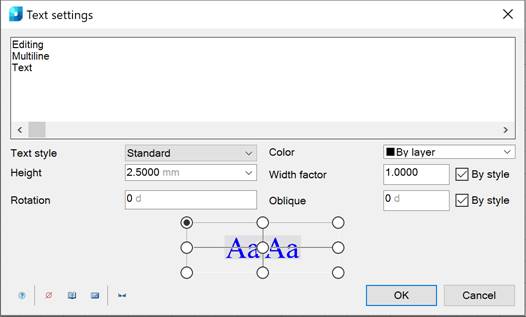
Options:
|
|
Field for displaying and editing the contents of a text string. |
|
Text style |
Drop-down list for selecting a text style. |
|
Height |
Drop-down list for selecting the height of characters. It is possible to enter a value from the keyboard. |
|
Rotation |
Setting the rotation angle of a text string relative to the X axis. |
|
Color |
Drop-down list for selecting the color of a text string. |
|
Width factor |
Field for entering the coefficient of expansion or contraction of characters. The value 1.0 is the norm for the width of characters of a specified font. Values greater than 1 increase the width of characters, values less than 1 decrease it. |
|
Oblique |
Field to enter the character oblique angle. |
|
|
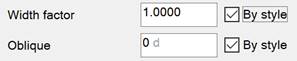
Fields for displaying/setting whether the width factor and oblique angle of characters in the edited text correspond to the values specified in the text style. For a text whose width factor and/or oblique angle correspond to those specified in the text style, the boxes are checked in these fields:
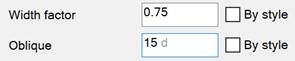
If the width factor and/or oblique angle values do not correspond to those specified in the text style, the boxes are not checked:
The width factor and oblique angle input fields display the current values for the text being edited. To set the width factor and/or oblique angle values of the edited text to correspond to those specified in the text style, check the boxes. The values will automatically change to those specified in the text style:
|
|
|
Sets the alignment of a text object. |

The following additional commands are available in the dialog box:
 Insert special symbol – opens an additional menu that allows you to select and insert special characters into a text string.
 Notebook – the command allows you to paste a piece of text from your notebook.
 Calculator – the command allows you to calculate a specific value and insert it into the text.
 Fit text – the command defines the size of the frame in which the text should be fit.
5.