


 De
De  Es
Es  Fr
Fr  Pt
Pt 

-
-
-
-
-
-
-
-
-
-
-
-
-
-
-
-
-
-
-
-
-
-
-
-
-
-
-
-
-
-
-
-
-
-
-
-
-
Adding a 3D Slope to a Surface
-
-
-
-
-
-
-
-
-
-
-
-
-
-
-
-
Adding a 3D Slope to a Surface
 Ribbon: Topoplan – Modify TIN >
  Adding a 3D Slope to a Surface
Menu: Topoplan – Modify TIN >  Adding a 3D Slope to a Surface
Toolbar: Modify TIN >  Adding a 3D Slope to a Surface
 Command line: NG_MESH_ADD_3D_SLOPE
The command adds a 3D slope object to an existing surface.
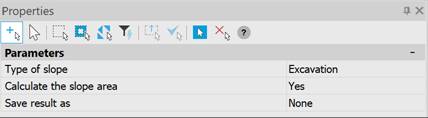
The command parameters are set in the Properties bar.
|
Type of slope |
Selects the type of slope: Excavation, Embankment. |
|
Calculate the slope area |
Calculates the slope area. If Yes is selected, an additional item appears – Save result as. |
|
Save result as |
Saves the calculation result to the selected surface. During the command execution: a Mesh or Polyface Mesh can be created. |
Command prompts:
|
Select slopes or [?]: |
Specify slopes on the screen. |
|
Apply changes [Yes/No/Save/saveDefault] <Yes>: |
Yes – the command will be performed taking into account the changes to the settings made by the user in the current session of the command. No – the command will be performed with the settings that were displayed immediately after the command was launched. Save – saving the settings to the document. saveDefault – saving the settings to the registry. |