

 De
De  Es
Es  Fr
Fr  Pt
Pt 

-
-
-
-
-
-
-
-
-
-
-
-
-
-
-
-
-
-
-
-
-
-
-
-
-
-
-
Creating and editing complex objects
-
-
-
-
-
-
-
-
-
-
-
-
-
-
-
-
-
-
-
-
-
-
Creating and editing complex objects
To edit a set of objects they can be grouped in the document. You can select the whole group and its elements to edit. New objects can be added to a group and existing objects can be excluded from a group. Objects can belong to several groups at once, and a group can belong to another group. To restore the configuration of source groups, grouped into one group, you have to ungroup nested groups.
Groups can be assigned names or use default names. An unnamed group (a group without its own name) has a default name - An, where n is the number of created groups. Unnamed (anonymous) groups are used for temporary grouping.
Groups are saved with a document and can be used in the following working sessions.
Main distinction between groups and blocks:
· Objects in a group can be edited without ungrouping, but to edit objects in a block, the block must be exploded.
· A group cannot be transferred to another document; it can be used only in the document where it was created.
Commands to work with groups of objects are located as:
 Ribbon: Home – Group
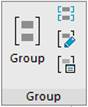
Menu: Tools –  Group,
  Ungroup
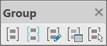
Toolbar: Group
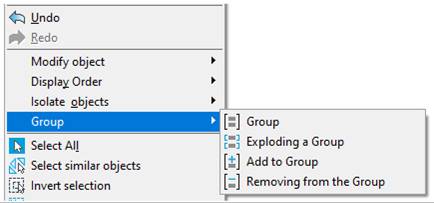
in the context menu in the drawing area: Group
In the Drawing Explorer toolbar –the Drawing settings section – Groups
Commands to work with groups:
|
|
UnGroup (UNGROUP) |
Explodes or breaks a group. |
|
|
Editing a group (GROUPEDIT) |
Adds or removes objects from a group. |
|
|
Dialog for Creating Groups (CLASSICGROUP) |
Displays the Object Grouping dialog box to manage groups. |
|
|
Select Group (PGROUP) |
The Select Group mode. Switches the value of the PICKSTYLE variable: 0 – No group selection, an object in the group is selected. 1 – When selecting an object in the group, all objects in the group are selected. |


It is convenient to create, fill and edit groups using the Drawing explorer toolbar.
The Object grouping dialog box is intended for more detailed work.
Ribbon: Home >  Group
Group
Menu: Tools > Group
Toolbar: Group –
Context menu in the drawing area: Group – Group
 Command line: GROUP
The command to create a group of objects.
The command allows you to create both named and unnamed groups (unlike the Create option of the non-dialog version of the -GROUP command).
Command options:
|
? |
Calls additional options for selecting objects. |
|
Name |
Specifies the group name. |
|
Description |
Enters description of the group of objects. |
Command prompts:
|
Select objects or [?/Name/Description] |
Select objects and press ENTER to create an unnamed group. The command line displays the message: Anonimous (unnamed) group '*A1' was created. If the objects have been pre-selected in the drawing, the command also creates an unnamed group. |
|
|
Selection of the Name option. |
|
Enter a group name or [?]: |
Specify the group name The group name should contain no more than 31 characters and can contain letters, numbers, and special characters (dollar sign "$", hyphen "-", and underscore "_"). The name should not have spaces. Or select the ? option to output a list of existing group names and descriptions to the command line. |
|
|
Selection of the Description option. |
|
Enter a group description: |
Specify the description (explanation) for the group. |
When creating a duplicate group (a group containing the same set of objects as an existing group in the drawing), the command line prompts:
Group '*A1' with the same objects already exists. Create a new group anyway? [Yes/No]:
When you select the Yes option, a new unnamed group will be created: Anonimous (unnamed) group '*A2' was created.
When you select the No option, a group will not be created: Nothing selected. No group created.