

 De
De  Es
Es  Fr
Fr  Pt
Pt 

-
-
-
-
-
-
-
-
-
-
-
-
-
-
-
-
-
-
-
-
-
-
-
-
-
-
-
External References Toolbar
-
-
-
-
-
-
-
-
-
-
-
-
-
-
-
-
-
-
-
-
-
-
External References Toolbar
 Ribbon: Insert – Reference >
  XREFs (External References)
Ribbon: Manage – Palettes > External References
Menu: Insert –  External References…
 Command line: EXTERNALREFERENCES, IMAGES, XR, XREF
The command opens the External References dialog box. It displays all external references contained in the document and manages these references.
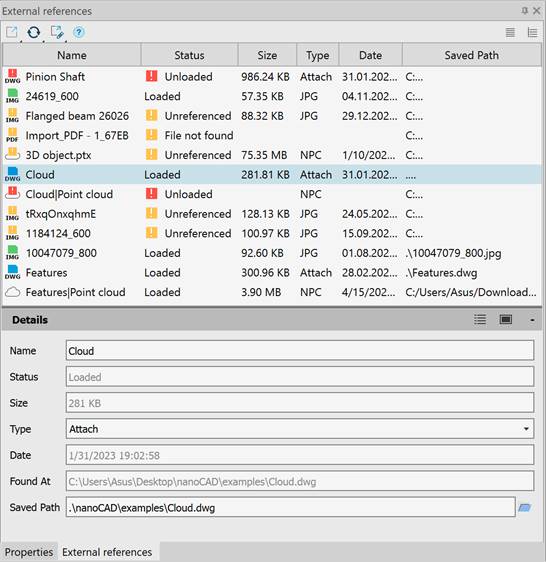
The External references palette allows you to perform the following operations with the referenced drawing files:
· Loading/unloading an external reference in the current drawing.
· Binding an external reference to the current drawing.
· Updating an external reference in order to display in the current drawing the latest changes made to the external reference file (without reloading the current drawing).
· Complete removing an external reference insert from the current drawing with all associated data. It is not sufficient to simply remove a reference from the drawing, since such removal would not lead, for example, to removal of layers associated with the external reference. To remove the external reference completely, use the Remove parameter on the External references palette.
· Changing the name of the reference file and its location (path).
· Changing the file type and the format settings of the file of reference to the raster image.
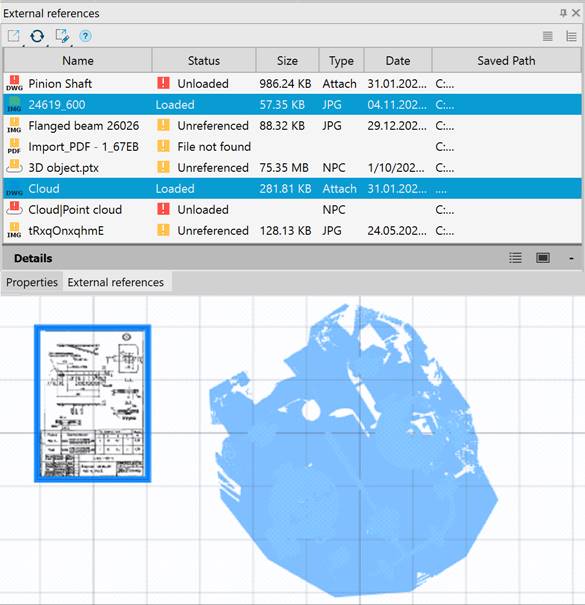
Xrefs selected in the dialog box are automatically selected and highlighted in the drawing. And vice versa: when xref objects are selected in the drawing, their names will be automatically selected in the External references dialog. The ERHIGHLIGHT system variable is responsible for synchronizing highlighting with objects in the drawing. Single and multiple selection is supported (using CTRL and SHIFT):
Tools to control external references
|
Button |
Description |
|
|
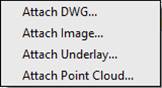
Selects xref file to attach to the current drawing.
|
|
|
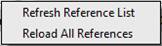
Updating information in the list. Reloads all external references to display changes in the associated files.
|
|
|
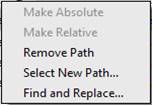
A path type can be changed to absolute or relative one. Remove Path – it is expedient to remove a path, if the referenced file is located in the same folder as the current drawing. Select New Path – allows you to set a new path for the missing reference. Find and Replace – allows you to find those among the selected xrefs, which use the specified path and replace all references of these path to a new path. Opens the Find and Replace Selected Paths dialog box. |
|
|
Opens help information. |
|
|
Displays the palette information as a list. |
|
|
Displays the palette information as a tree. |





The Details Section contains detailed information about the selected xref file.
|
Button |
Description |
|
|
Displays information about the selected file. |
|
|
Shows a thumbnail view of the selected file. |
|
|
Controls visibility of the Details section. |


The options of the External References bar in the Show list:
|
Column |
Description |
|
Name |
Displays the name of the external reference file |
|
Status |
Displays the status of the external reference file: · Loaded – the referenced file is attached to the current drawing. · · · · Unresolved – the referenced file cannot be read. · Orphaned – the referenced file is attached to another file that has an Unresolved status. |
|
Size |
Displays the size of the attached referenced file. |
|
Type |
*.dwg files display the file type of the referenced file: · Attachments · Overlays Raster images display their file format: |
|
Date |
The date when the referenced file was created or last saved. |
|
Saved Path |
Displays the path that is saved with the drawing when the referenced file is attached. |


Context menu
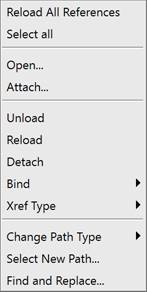
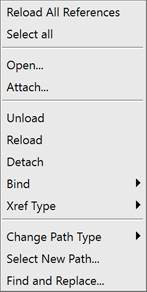
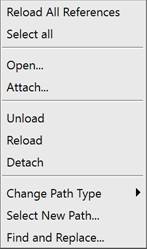
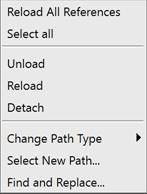
The edit commands for a xref selected in the palette list are contained in the context menu and differ for different file types:
|
DWG |
Image |
PDF Underlay |
Point Cloud |
|
|
|
|
|
|
Command |
Description |
|
Reload All References |
Updates all external references of the document. |
|
Select all |
Selects all external references in the Manager. |
|
Open |
Opens the selected xref file in the source application (in which the file was created). |
|
Attach |
Opens the external reference dialog box with the selected file name, which allows for changing such settings as scale, insertion point and path type or select another page of an underlay file. |
|
Unload |
Unloads the selected reference to file from the drawing. |
|
Reload |
Updates the selected reference to the file. |
|
Detach |
Deletes the selected reference to the file. |
|
Bind |
The reference content is embedded in the drawing, reference to the file is deleted. |
|
Xref type |
Change xref type: · Attach · Overlay |
|
Save as… |
Changes the selected reference to a raster image. You can change xref file name, file type and file format parameters. A World file with geocoordinates for each raster image is also created if the Georeferencing – Use World or TAF file box is checked in the Options dialog. |
|
Change Path Type |
Changes the type of path to a reference: Make Absolute, Make Relative, Remove path |
|
Select New Path… |
Specifies a new path for an unreferenced file. Opens the Open file dialog to specify a new path. |
|
Find and Replace… |
Searches though the selected references for those that use the specified path, and replaces all insertions of the path with the new one. Opens the Find and Replace Selected Paths dialog. |
|
Freeze |
Freezes the selected references. Frozen reference objects are shaded (displayed lighter). |
In the Drawing Explorer functional bar, the context menu that opens when you right-click on the external reference name also provides commands for editing external references:
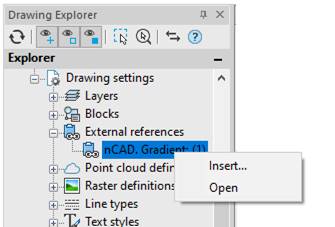
Open – opens the referenced drawing in a new window.
Insert – opens the Insert external reference dialog box with the name of existing external reference to re-insert or to select a file of a different xref file.