

 De
De  Es
Es  Fr
Fr  Pt
Pt 

-
-
-
-
-
-
-
-
-
-
-
-
-
-
-
-
-
-
-
-
-
-
-
-
-
-
-
-
-
-
-
-
-
Comb Leader Note
-
-
-
-
-
-
-
-
-
-
-
-
-
-
-
-
-
-
-
-
-
-
Comb Leader Note
 Ribbon: Home, Annotate – Leaders >
  Comb Leader note
 Menu: Draw – Notes >
  Comb leader notes…
Toolbar: Utilities, Notes –
 Command line: NOTEC
This command opens the Comb leader note dialog box to set the comb leader note options:
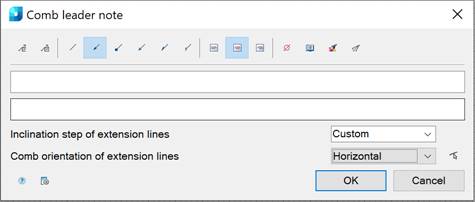
Options:
Buttons to add borders:
|
|
Managing multiline text output above the leader. The transition to another line is performed by the CTRL+ENTER key combination. |
|
|
Framing the text under the leader. |


Use the icons to select the style of the extension line:
|
|
|
None. |
|
|
|
Arrow. |
|
|
|
Point. |
|
|
|
Open arrow. |
|
|
|
Half-arrow. |
|
|
|
Oblique. |


Use the icons to select the text alignment method:
|
|
|
By left edge. |
|
|
|
By center. |
|
|
|
By right edge. |


Other icons and options:
|
|
The Insert special symbol icon opens the panel with the table of special symbols, to select and insert them at the current cursor position in the text input field. |
|
|
The Notepad icon opens the Notepad dialog box. |
|
|
The Match properties icon temporarily closes the dialog box to specify the inserted leader whose properties should be copied and applied to the newly-created leader. |
|
|
The Add extension line icon is used to insert additional extension lines. The button works and is active if at least one leader line is set. |
|
|
The Select line icon is used to switch the comb orientation parallel to the specified line on the drawing. The icon is available when you edit the comb leader note inserted into the drawing. |
|
Angle step of extension lines: |
Drop-down list to select inclination. In the list the following inclinations are available: · Custom - the extension line is placed arbitrarily (by default); · 15 - the extension line is placed in step multiples of 15°; · 30 - the extension line is placed in step multiples of 30°; · 45 - the extension line is placed in step multiples of 45°; · 90 - the extension line is placed in step multiples of 90°. |
|
Comb orientation of extension lines: |
Drop-down list to select the comb orientation of the extension line. The following options are available in the list: · Custom – the extension line comb is set arbitrarily (by default); · Horizontal – the extension line comb is set horizontally; · Vertical – the extension line comb is set vertically. |
|
|
The Options button opens the nanoCAD Design Settings dialog box – Symbols tab. |


The default comb leader note contains two input lines. The first line is for the caption above the leader landing, the second line is for the caption below the landing.
Right-click in the text field and choose the required menu item:
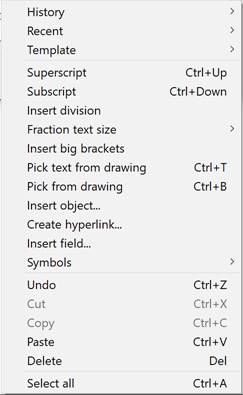
When you open the context menu on a leader arrow (without selecting the leader), a dialog box for selecting the arrow type will appear:
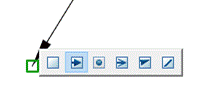 .
.
To create a comb leader note:
The Show dialog before inserting the object option is enabled
1. Run the command.
2. In the Comb leader note dialog box, select the required leader options.
3. Enter the required text into the text fields.
4. Click OK.
5. Specify the leader’s position and press ENTER to end.
6. Specify the leader’s position and angle. In the command line the following prompts are displayed: [Horizontal /Vertical /Parallel]. The Parallel option allows you to choose the direction of a comb leader note parallel to any line on the drawing.
7. Specify the landing position on the drawing.
The Show dialog before inserting the object option is disabled
1. Run the command.
2. Specify the required number of leader lines (the object is highlighted when specifying the position), and press ENTER to finish.
3. Specify the inclination of the extension lines. Options for switching the comb orientation are available in the command line and the context menu: [Horizontal/Vertical/Parallel]. The Parallel option allows you to select the direction of the extension line comb parallel to any segment in the drawing.
4. Place the leader landing on the drawing.
5. In the Comb leader note dialog box, select the required note options.
6. Enter the required text into the text fields.
7. Click OK.