

 De
De  Es
Es  Fr
Fr  Pt
Pt 

Calculations and Valuation
Calculating the Volume between Models
 Ribbon: 3DScan – Texturing and Calculations >
  Calculating the Volume between Models
Menu: 3DScan > Calculation >  Calculating the Volume Between Models
Toolbar: Texturing and Calculation > Volume between Models
 Command line: PC_CALC_ VOLUMES
Volume of triangular irregular network (TIN) is used in a building. It determines volume of excavations. Command calculates soil volume that should be cut or covered. It is possible to calculate difference, balance and total volumes.
For the command to work, the drawing should contain measurements, as well as SubDMesh or Polyface mesh objects. SubDMesh and Polyface mesh can be get through the Create TIN command.
Calculate the volume:
1. Start Volume of TIN and Cloud intersection command.
2. In response to prompt in the command line, select SubDMesh or Polyface mesh:
Select plan mesh (subdmesh or polyface mesh) or [?]:
3. Select the required object (mesh),
4. Then, select the actual surface
Select actual surface (pointcloud, submesh or polyface mesh) or [?]:
5. Configure the command parameters on the Properties bar and press Enter, or run the command without changing settings by selecting No in the command line:
|
Apply changes? <Yes> or [Yes/No/Save/saveDefault] <Yes>: |
Yes – the command will be performed taking into account changes in the settings made by the user in the current session of the command work. No – the command will be performed with the settings displayed immediately after running the command. Save – saving settings to a document. saveDefault – saving settings to the registry. |
Total volume
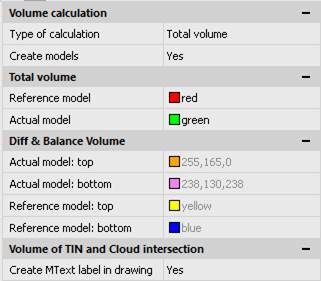
Calculate total volume of displace soil (sum of cut and covered soil).
Command creates 2 new models (meshes) – by measurements (actual model) and copy of created triangulation (reference model). Then it calculates sum of volumes of these models.
Differenced volume
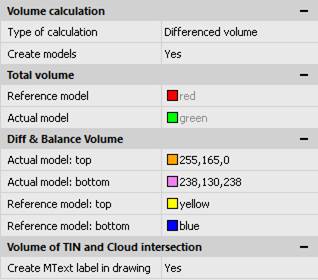
Calculates volumes of cut and covered soil separately. Creates 4 meshes: top and bottom of reference model, top and bottom of actual model.
Balance volume
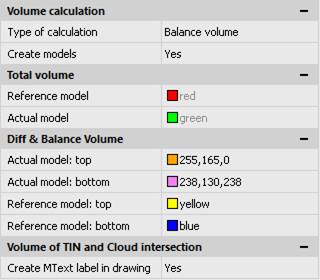
Balance volume is difference between cut and covered volumes and displays excess/deficiency of soil. Creates 4 meshes: top and bottom of reference model, top and bottom of actual model.
Create models
Checkbox is enable by default, and the command creates triangular networks. Each network placed on new layer. If checkbox is disable, new objects and layers are not created.
Create MText label in drawing
Create multiline text that contains calculation results.
If checkbox is disabled, then only command line displays results:
Volume Cut = 2012044.5914294645, Volume Cover = 1975404.1201610819
Volume Displace= 3987448.7115905462, Volume Balance = 36640.471268382622
Volume Total= 3987448.71