

 De
De  Es
Es  Fr
Fr  Pt
Pt 

Installation and Registration Guide
Revoke license
To transfer the license to another computer, choose Revoke license option.
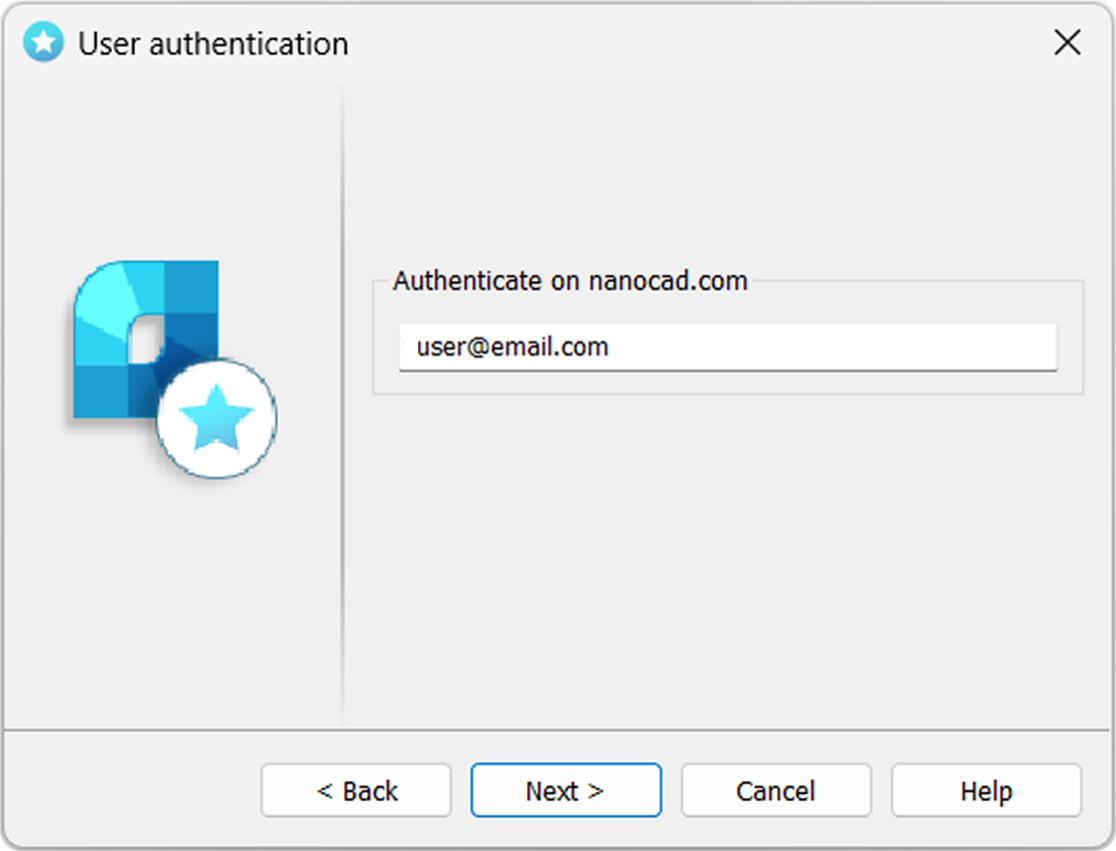
In User Authentication window enter your login (it coincides with email you registered at nanocad.com).
Registration Wizard connects with License Server, sends a license revocation request, and revokes the license on the computer after receiving a response from the server.
The result of an online license request may be:
If the license was successfully revoked, click Next, then Finish.
Congratulations! License successfully revoked.
If you have any problems revoking the license, connect Support Center support@nanocad.com.
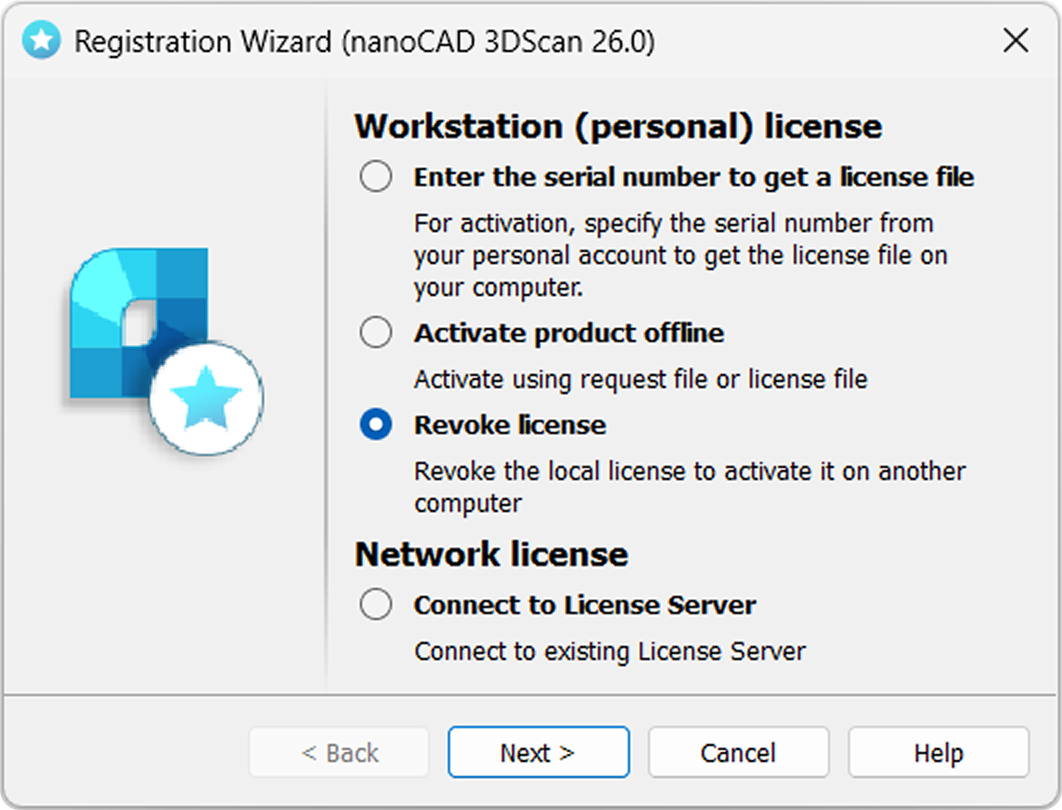
Revoke license
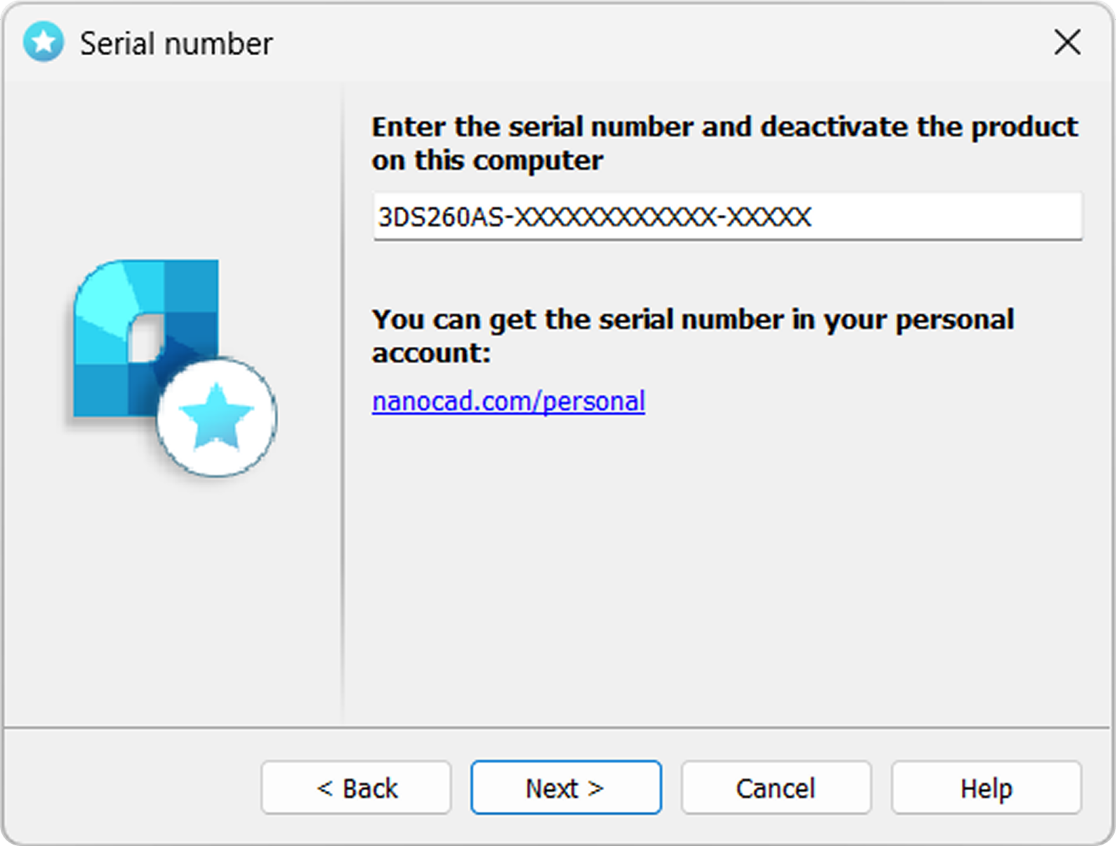
The Serial number window will be opened. Enter the serial number in the field and click Next.
In User Authentication window enter your login (it coincides with email you registered at nanocad.com).
Registration Wizard connects with License Server, sends a license revocation request, and revokes the license on the computer after receiving a response from the server.
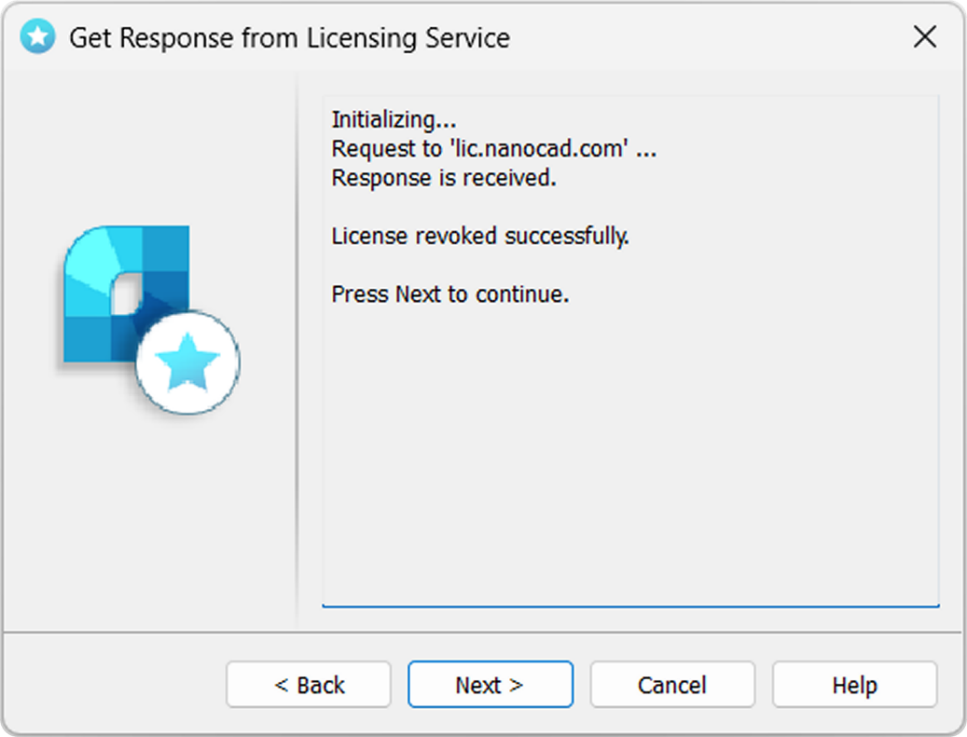
The result of an online license request may be:
- license revoked successfully;
- license revoke request failed;
- failed connection to Licensing Server.
If the license was successfully revoked, click Next, then Finish.
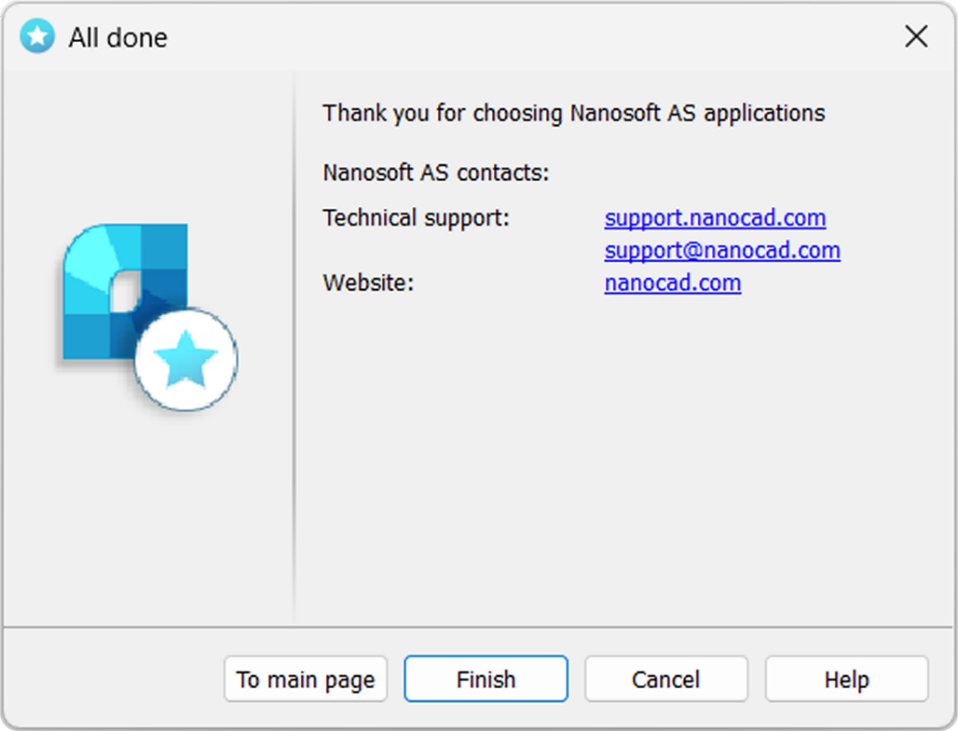
Congratulations! License successfully revoked.
If you have any problems revoking the license, connect Support Center support@nanocad.com.