

 De
De  Es
Es  Fr
Fr  Pt
Pt 

Installing nanoCAD 3DScan – Step-by-Step Guide
Installation
When the downloading process has finished, you can start installation by double clicking on the installation file with .exe file format.
Click Next to continue.
In the next window you should read the End-User License Agreement. To continue, check I accept the terms in the License Agreement box and click Next button:
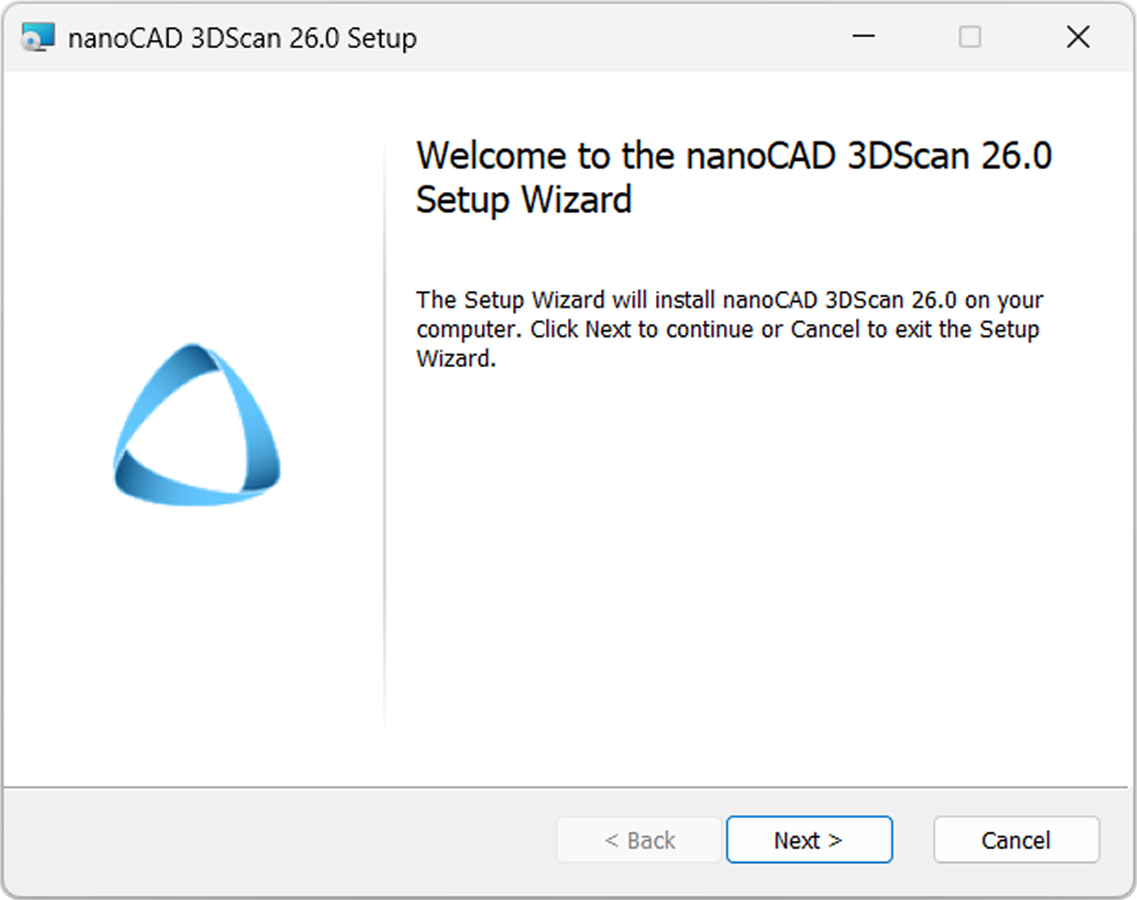
Click Next to continue.
In the next window you should read the End-User License Agreement. To continue, check I accept the terms in the License Agreement box and click Next button:
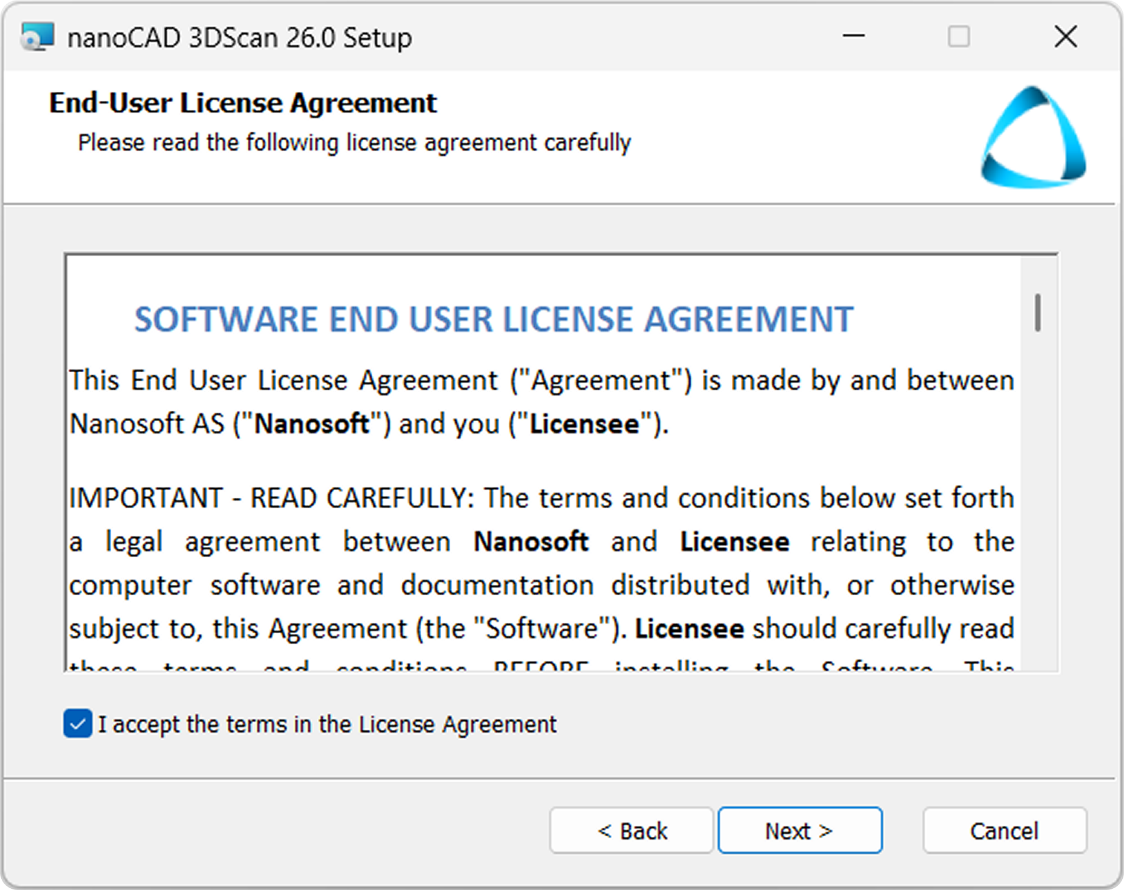
Choose the folder where the program will be installed. We recommend not to change the default folder.
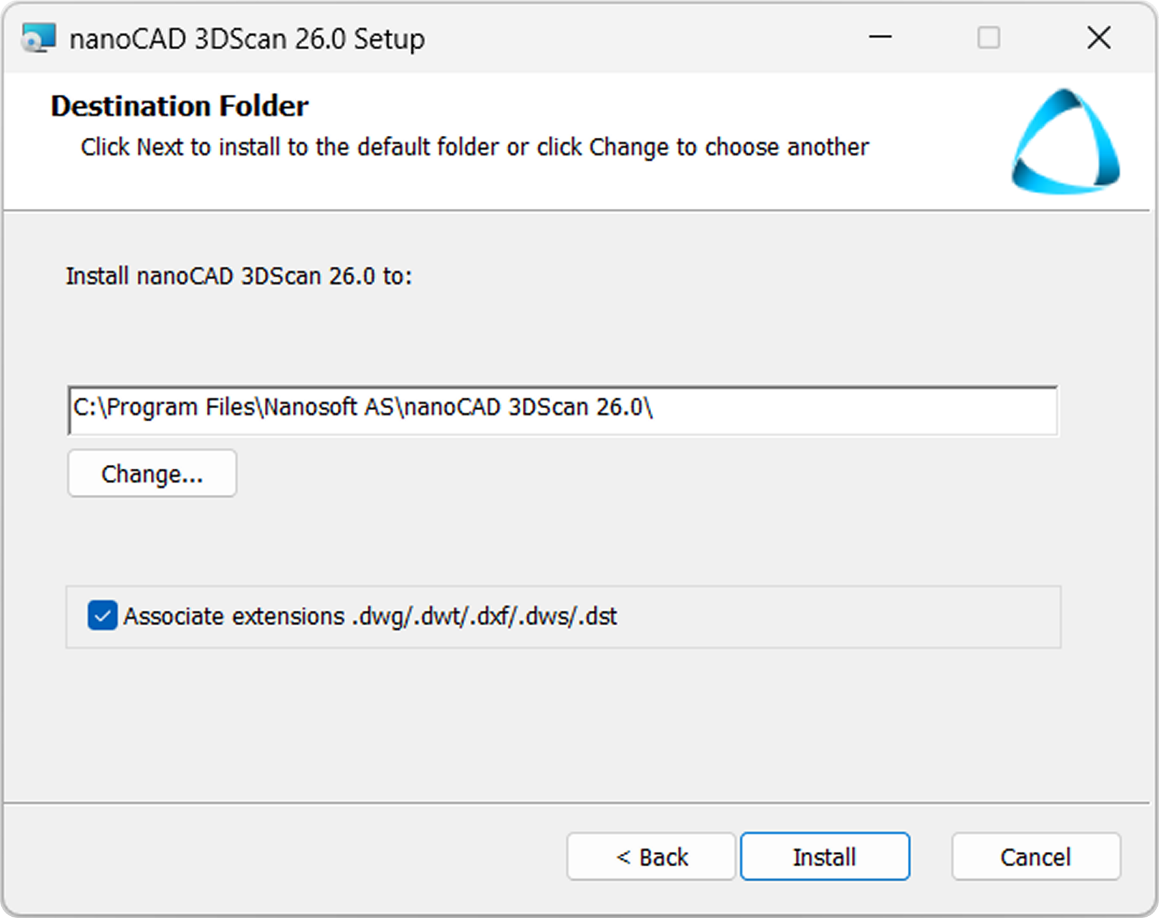
Click the Install button to start the installation process:
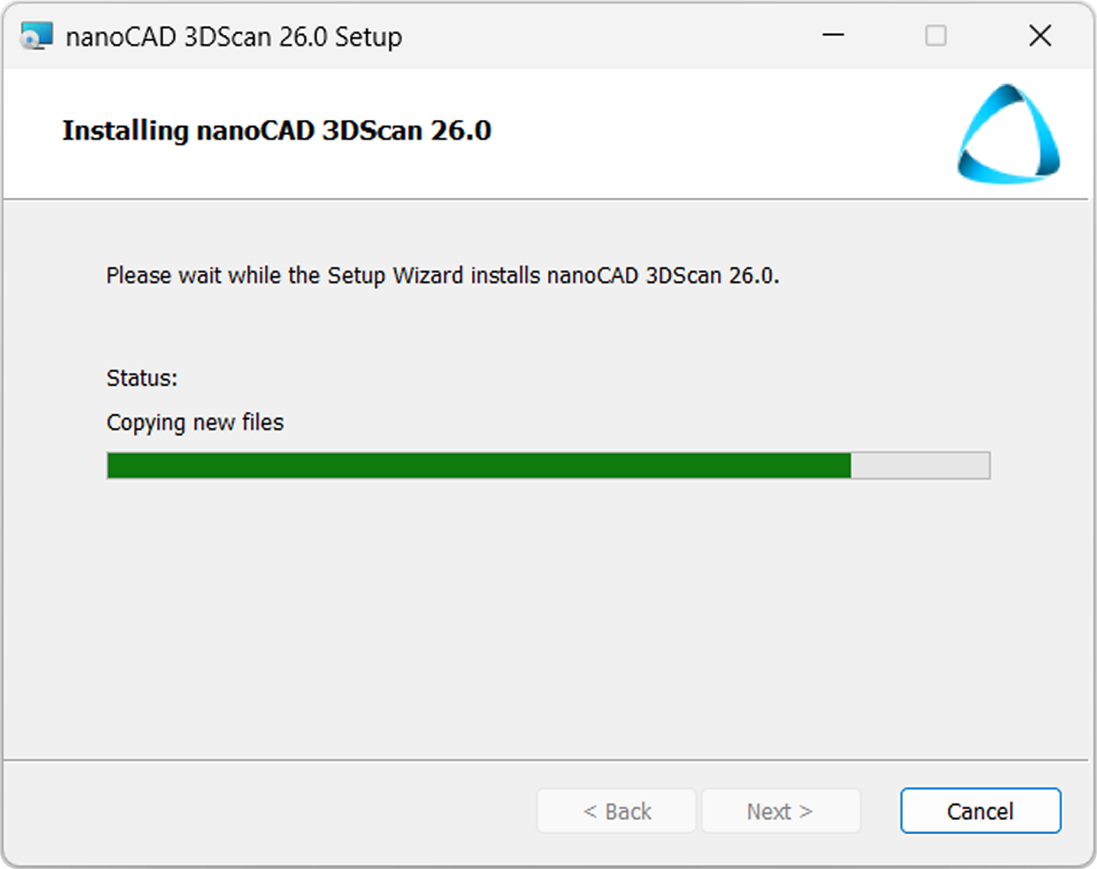
Note: If you want to use 3DScan as the default application for opening .dwg/.dwt/.dxf/.dws/.dst files, leave the box checked; if not, uncheck it.
After the installation process completed, click Finish to run Registration Wizard and register nanoCAD 3DScan.
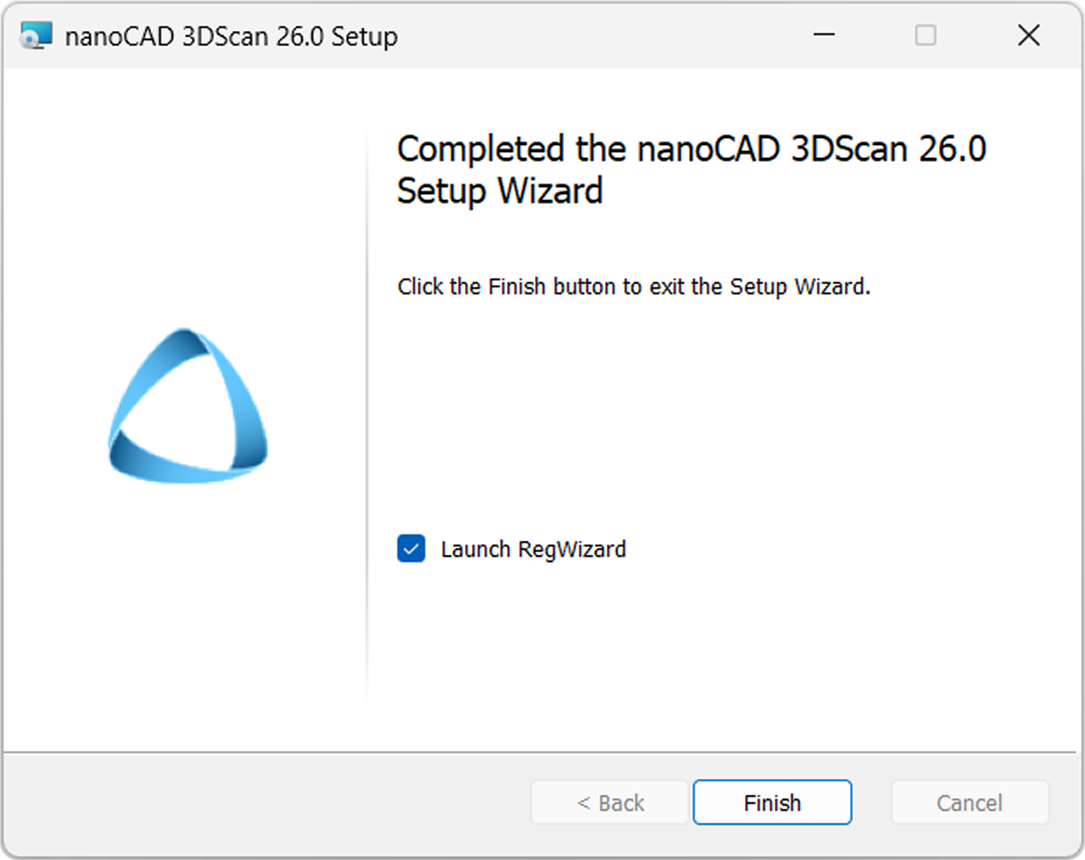
Registration Wizard also might be started manually: Start menu – All programs – nanoCAD 3DScan 26.0 – Registration Wizard.