

 De
De  Es
Es  Fr
Fr  Pt
Pt 

Making nanoCAD Your Own
Command Aliases, Hotkeys, and Custom Panels
As you become more familiar with nanoCAD, you may find that some elements of the interface do not quite match the way you work. You can create your own command aliases and keyboard shortcuts, build custom toolbars and Ribbon tabs, and save your working environment as a profile.One Dialog for Practically Everything
The program interface is configured in the Customize user interface dialog. Open it by right-clicking on the ribbon and choosing Customize Interface, through Tools → Customize → Interface, or just by typing INTERFACE in the command line.
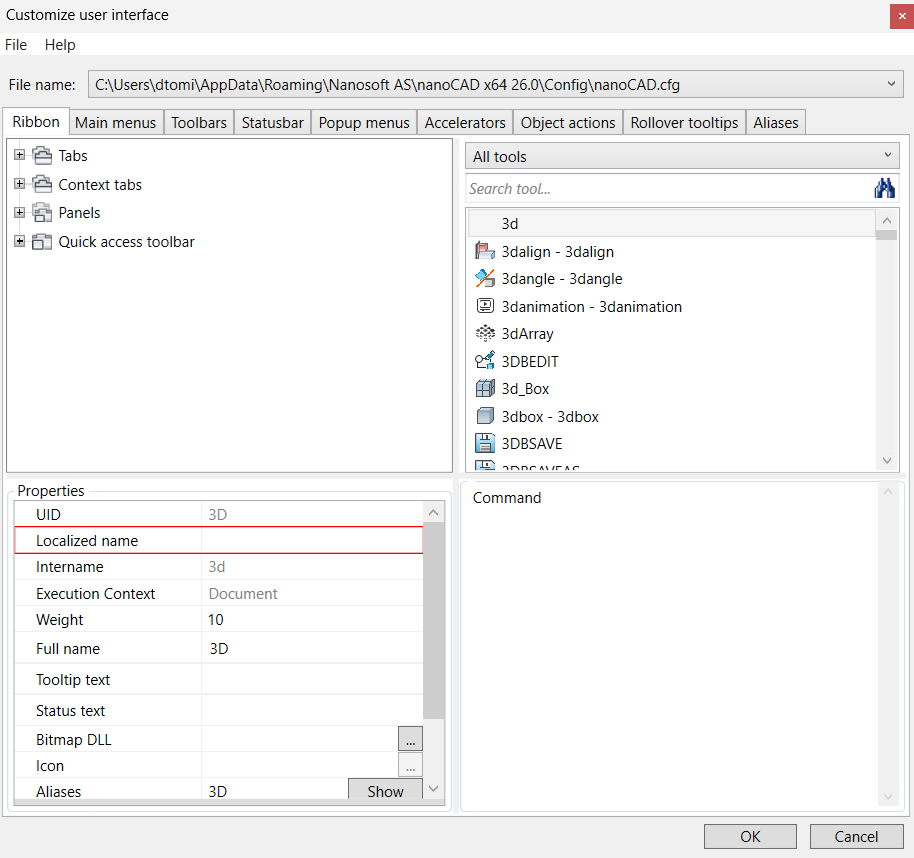
In this dialog, the main interface elements are grouped into tabs - Ribbon, Main menus, Toolbars, Statusbar, Popup menus, Accelerators, Object actions, Rollover tooltips, and Aliases. All settings made here are saved in a configuration file (.cfg), which allows you to share your personal settings.
All changes made in the Customize user interface dialog take effect after the program is restarted. Ribbon changes are the exception, to apply changes to ribbon elements, use the RELOADRIBBON command or press Alt+R. No program restart is required.
Command Aliases: Type Less, Draw More
If you’ve read our earlier article on the interface, you already know that typing C instead of CIRCLE saves real time. The Aliases tab lets you set alternate names that call commands from the command line. One command can have several CIRCLE aliases. Each alias belongs to only one command.
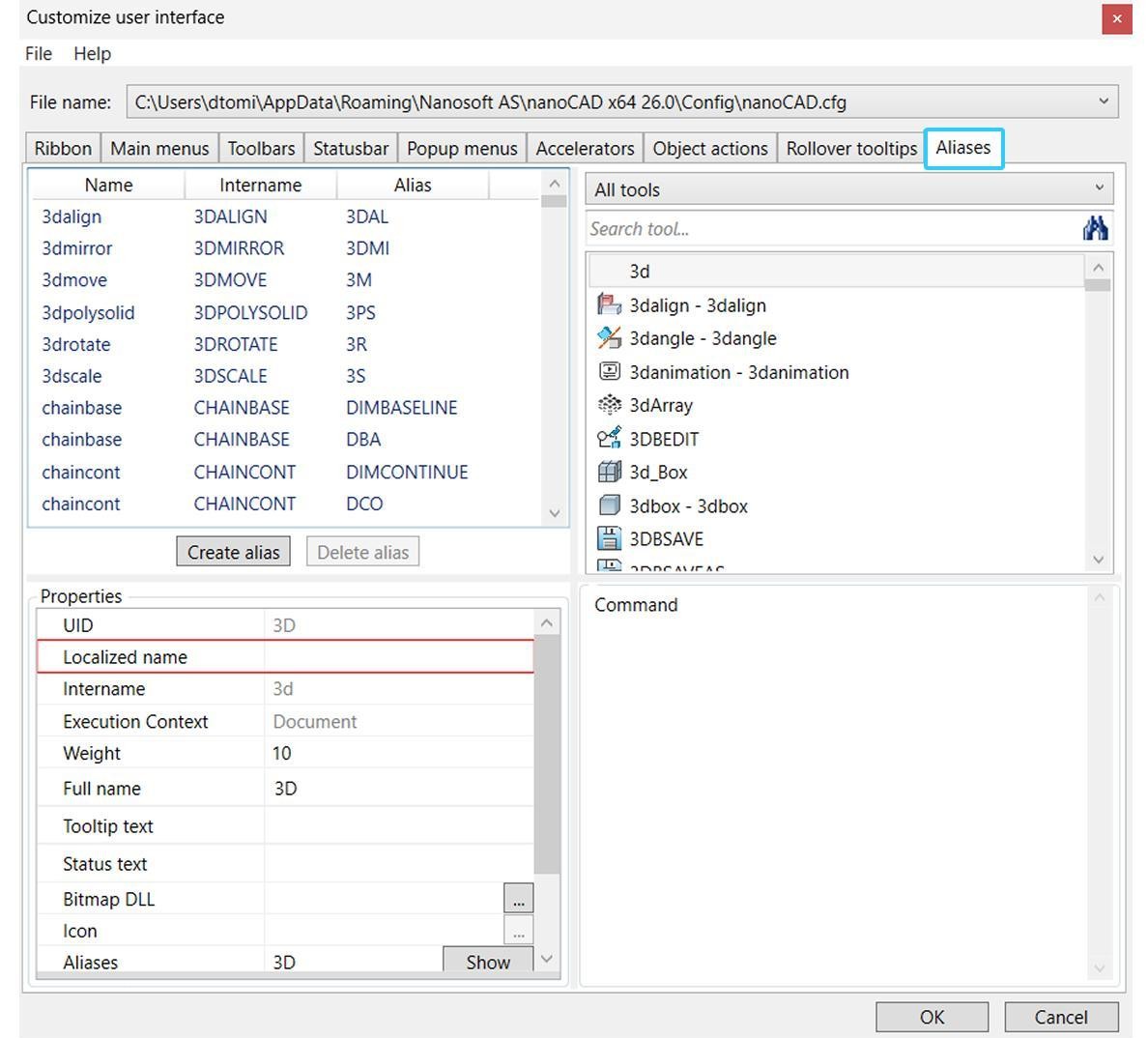
To create an alias:
- Click the Create alias button.
- Press the button near the Intername field, then select the command from the list.
- Type your shorthand into the Alias field.
You could come up with a few aliases for the commands you use all the time. A logical and memorable system is always better than a long list of random abbreviations.
Keyboard Shortcuts: Skip the Command Line Entirely
Keyboard shortcuts, called accelerators in nanoCAD, skip the command line altogether. Ctrl+O for Open and Ctrl+S for Save are accelerators you’re already using without thinking about it. The Accelerators tab lists existing shortcuts and lets you add shortcut combinations for frequently used commands. It is possible to set several keyboard shortcuts for one command.
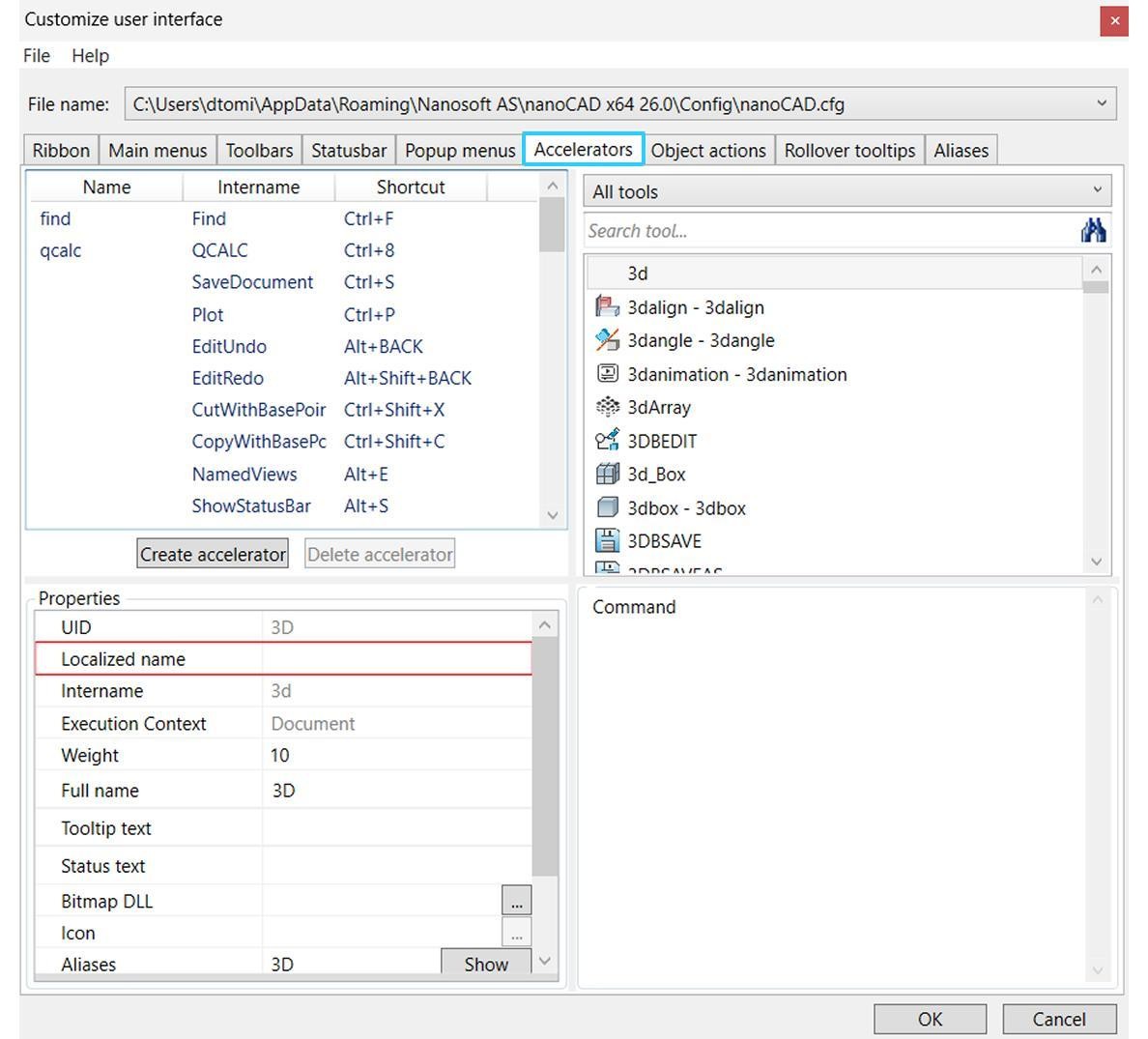
To create a shortcut:
- Click the Create accelerator button.
- Press the button near the Intername field and select the desired command in the Select command dialog box.
- Place the cursor in the Shortcut field and press the key combination you want to assign.
- Click OK.
You can also import shortcuts from a colleague’s configuration file: the Import shortcuts option on the same tab lets you pull in combinations from another .cfg or .cuix file instead of rebuilding them by hand.
Building a Toolbar (or Panel) With Just Your Tools
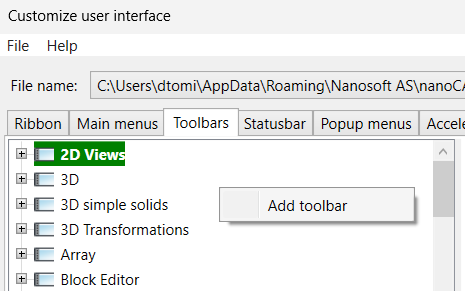
Beyond typing shortcuts, you can rearrange the elements on the screen. For example, minimize the ribbon, hide tabs or panels. The next step up is building something new, a toolbar of your own: Customize user interface → Toolbars.
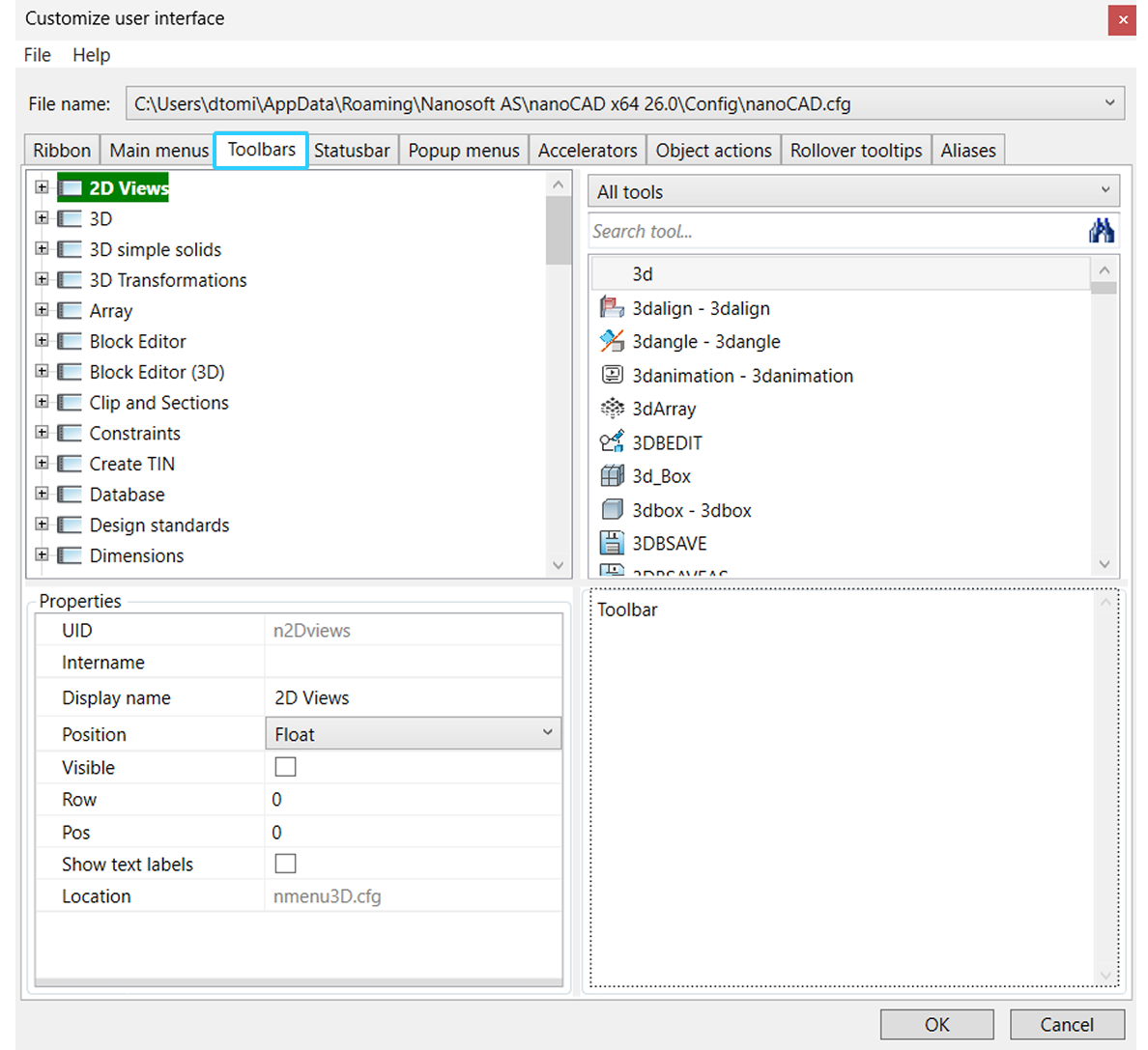
1. Right-click in the list window and choose Add toolbar.
2. Fill in the fields in the Create toolbar dialog box.
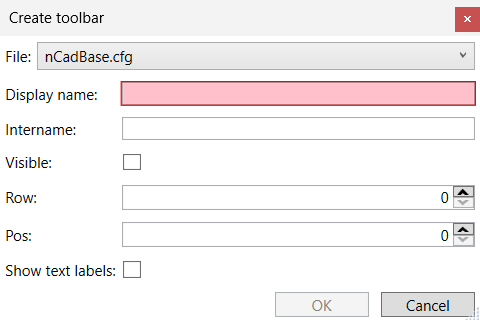
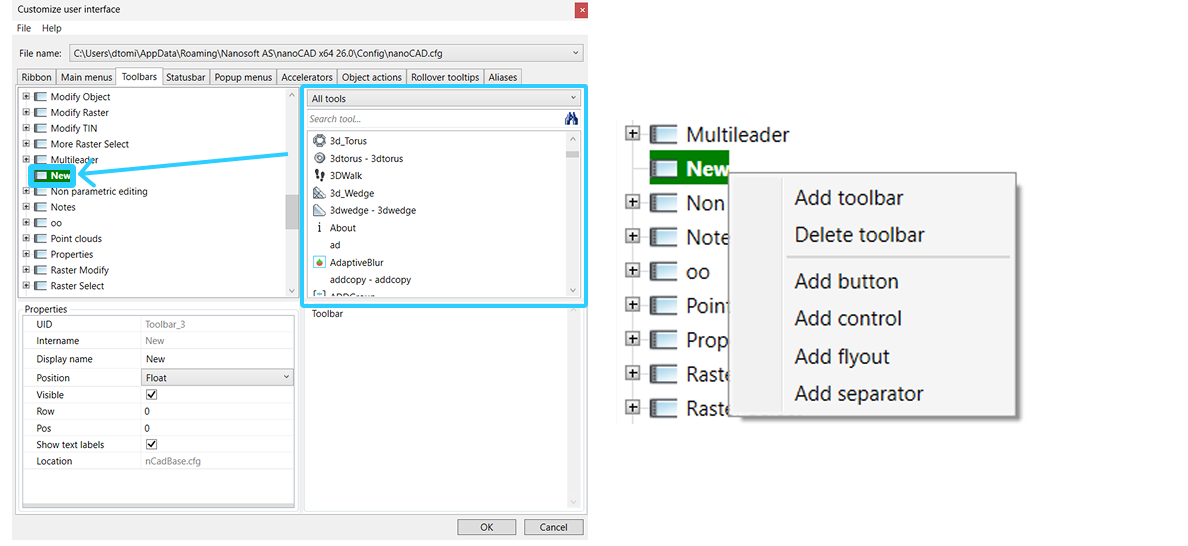
3. Click OK.The basic idea is straightforward - you create a new toolbar or panel, then drag commands onto it from the master tool list on the right side of the window. You can add commands, drop-down lists, controls and separators. The result is a single, compact toolbar that replaces several clicks through unrelated tabs with one glance.
Profiles: Save Your Whole Setup, or Hand It to Someone Else
A profile is a set of user settings for working environment parameters. Open it from the Manage tab: in the Customization group, click the drop-down arrow and choose Profiles. You can also type PROFILEEDITOR or PROFILES in the command line.
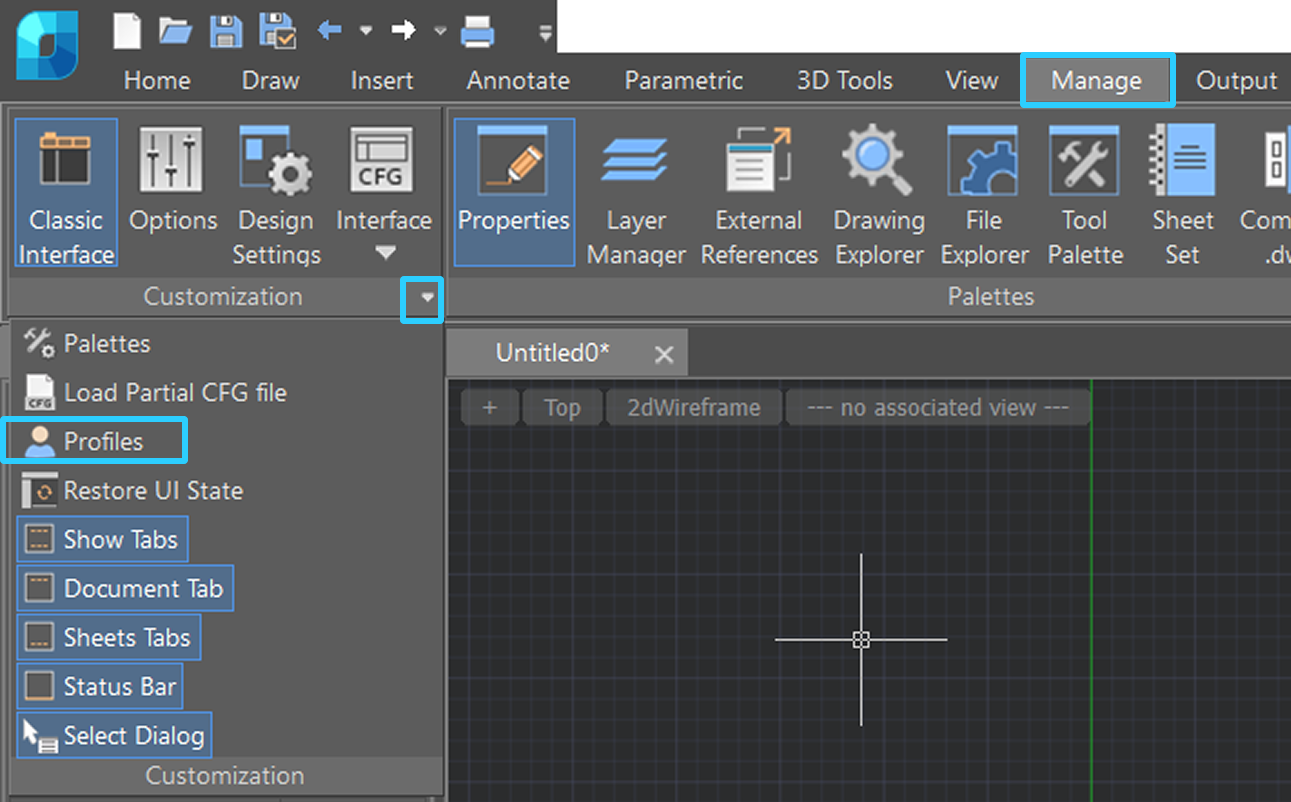
By default, nanoCAD saves all current settings in the <Default> profile.
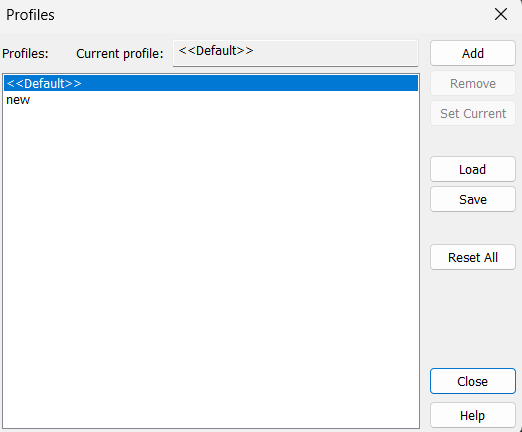
Create a new profile:
- Open the Profiles dialog and click the Add button.
- In the Add Profile dialog box, specify a name for the new profile.
- Select OK. The name of the created profile will be shown in the list of profiles.
Save a profile:
- Select the profile to save.
- Click the Save button.
- In the Save As dialog box, specify the name and the folder location to save the profile, then select the Save button.
To load a profile from another computer:
- Select the Load button.
- In the Open dialog box, select the nanoCAD profile.
- Select the Open button. The file will be added to the profiles list and set as the current one.
If You Ever Want to Undo It All
None of this is permanent in a scary way. A profile you don't like can simply be deleted — your drawings are completely unaffected either way. And if a toolbar or panel layout gets tangled, use Restore UI State to return the interface elements to their original arrangement. The command restores the display and arrangement of functional panels, toolbars, Ribbon elements, the status bar, and the main application window without changing the contents of your drawing.The Reset All button, in the Profiles dialog, deletes every profile you have and restores nanoCAD's standard one. It takes effect after a restart, and there's no undo - so export anything you want to keep before you press it.
The two commands solve different problems:
- Restore UI State → fixes the arrangement and display of interface elements.
- Reset All → removes custom profiles and restores the standard profile.
Where to Start
You don't need to customize everything at once. Start with the things that slow you down most often:- Add aliases for the five or six commands you type most often.
- Assign shortcuts to anything you find yourself reaching for the ribbon to do every few minutes.
- If you share a computer, set up your own profile before you do anything else.
Build the workspace you actually want
Aliases, accelerators, custom toolbars, profiles - thirty days is more than enough to find out which shortcuts you'd keep for the next ten years.Download nanoCAD Platform — free 30-day trial.
Want more guides, discussions, and contacts in your field? Join the nanoCAD Engineering Community.