

 De
De  Es
Es  Fr
Fr  Pt
Pt 

-
-
-
-
-
-
-
-
-
-
-
-
-
-
-
-
-
-
-
-
-
Selection of Overlaid Objects
-
-
-
-
-
-
-
-
-
-
-
-
-
-
-
-
-
-
-
-
-
-
-
-
-
-
-
-
Selection of Overlaid Objects
 Ribbon: Manage – Customization >
 Select Dialog
Menu: View – Show Selection Dialog
Status bar: Show Selection Dialog
 Hot keys: CTRL+W
Command line: SHOWSELDLG
In nanoCAD, selecting one of objects that are very close to each other or directly on top of each other is easy.
When you hover over multiple objects in nanoCAD, the Select Objects dialog box opens, displaying a list of overlapping objects:
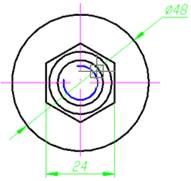
the dialog box automatically opens showing the list:
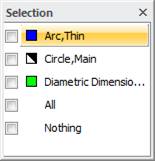
Parameters:
|
All |
Selection of all the objects in the dialog box list. |
|
Nothing |
No objects in the dialog box list are selected. Pressing ESC also cancels the selection and closes the dialog box. |
Place the cursor over any object in the list highlights it on the screen. Click on any object in the dialog box to select it. The dialog box closes after an object is selected.
To simultaneously select several objects from the list, check the boxes of the desired objects.
|
|
|
|
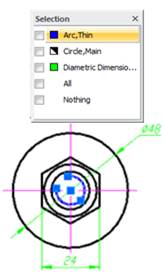
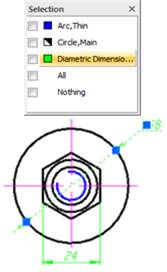
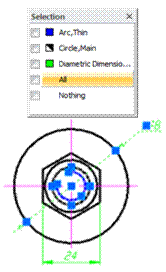
Example of selecting different objects: a) Selecting an arc; b) Selecting a dimension object; c) Selecting all three objects: an arc, a diameter dimension, and a circle