

 De
De  Es
Es  Fr
Fr  Pt
Pt 

-
-
-
-
-
-
-
-
-
Saving a Document with Another Name
-
-
-
-
-
-
-
-
-
-
-
-
-
-
-
-
-
-
-
-
-
-
-
-
-
-
-
-
-
-
-
-
-
-
-
-
-
-
-
-
-
-
Saving a Document with Another Name
 nanoCAD button –
  Save as
Menu: File –  Save As
 Hotkeys: CTRL+SHIFT+S
Command line: SAVEAS, SAVEASDOCUMENT
Every time you select the Save As command, nanoCAD will offer to specify a path to the file and/or change the file name in the Save Document File dialog. The selected path and entered file name are set by default, and when the Save command is used, the file will be saved with the path and name specified earlier.
|
|
Note |
|
Navigation pane in the nanoCAD list displays only those folders that are specified in Common files location section of the Options dialog. |

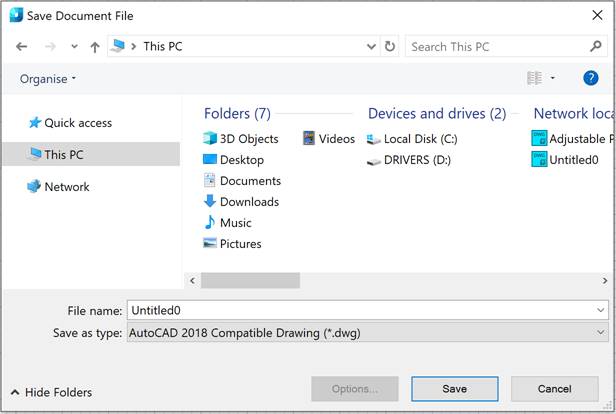
The nanoCAD list on the left side of the dialog displays user folders, the path to which is specified in the corresponding subsection Common files of the Default directories section of the Options dialog (OPTIONS):

The Quick access list on the left side of the dialog displays the Explorer’s quick access folders. You can add a folder by selecting the Pin to Quick Access command in the folder’s context menu or by dragging the folder to the list. You can remove a folder from the list by using the Unpin from Quick Access command in the folder’s context menu.
The selected path and the entered file name are set as default values, i.e. in the future, when using the Save command, the file will be saved to the location selected by the Save as command with the specified name.
The path and name should not be the same as the name of a file opened in another session or by another user (document sharing protection).
To save the document with another name:
1. Select folder to save the file.
2. Change the name in File name field.
3. Click the Save button.
The Save As command can be used to change the format of a file. The list of formats is presented in the Save in a format drop-down list. The default value is specified in the Save documents section of the OPTIONS dialog.
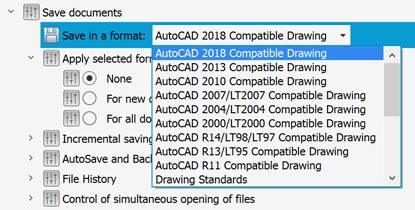
To change the file format:
1. Select a folder to save the file.
2. Select a format from the Save as type list.
3. Click the Save button.
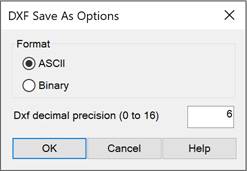
For the DXF format, the Save Document dialog box includes the Options... button that opens the DXF Save As Options dialog box:
|
Dialog parameters |
Description |
|
Format |
Selecting a DXF file type: · ASCII – a text-based DXF file format. Drawing data is saved as readable text; the file can be opened in a text editor and edited manually; · Binary – a format in which drawing data is saved as binary code. This is the standard format for most contemporary CAD systems. |
|
Dxf decimal precision (from 0 to 16) |
Precision input field for the text file type (available when ASCII is selected). Values range from 0 to 16. For standard drawings, a value of 6-8 is recommended, while for high-precision drawings, a value of 8-16 is recommended. |
When saving a drawing in *.dxf format using the Save or Save As commands, a complete copy of the file is created, including unused layers, styles, and blocks. To save only used objects and their associated elements (layers, linetypes, etc.) in the drawing, use the Export command.
Changing the file location using the Save As command for drawings containing external references with relative paths displays, the following message will appear:
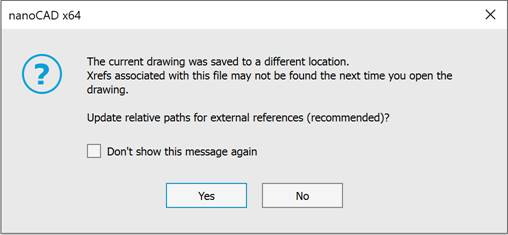
· Yes – the document is saved with updated relative paths of external references. When opening such a file, the external references status in the External references bar will be Loaded;
· No – external reference paths are not changed. When opening such a file, a warning message will appear: Referenced files could not be located or read; the external references status in the External references bar will be File not found;
· Don’t show this message again – disables the warning message. You can enable the display of the warning message in the “Don’t show again” messageboxes section (OPTIONS).