

 De
De  Es
Es  Fr
Fr  Pt
Pt 

-
-
-
-
-
-
-
-
-
-
-
-
-
Purging of Document
-
-
-
-
-
-
-
-
-
-
-
-
-
-
-
-
-
-
-
-
-
-
-
-
-
-
-
-
-
-
-
-
-
-
-
-
-
-
Purging of Document
 nanoCAD button – Utilities >
 Purge
Purge
Menu: File – Drawing Utilities >  Purge …
Document tab context menu: Utilities > Purge…
 Command line: PURGE, PU
This command is used to purge unused named elements from a document: block descriptions, dimension styles, layers, text styles and line types.
Using this procedure, you can reduce file size after finishing your project.
|
|
Attention |
|
Deleted elements cannot be recovered. |

The Purge dialog box appears after the command is launched, which shows two tabs:
· Purgeable items – a list of elements that can be deleted;
· Non-purgeable items – a list of elements that cannot be deleted from the document. These elements are either used in the document or are standard and cannot be deleted.
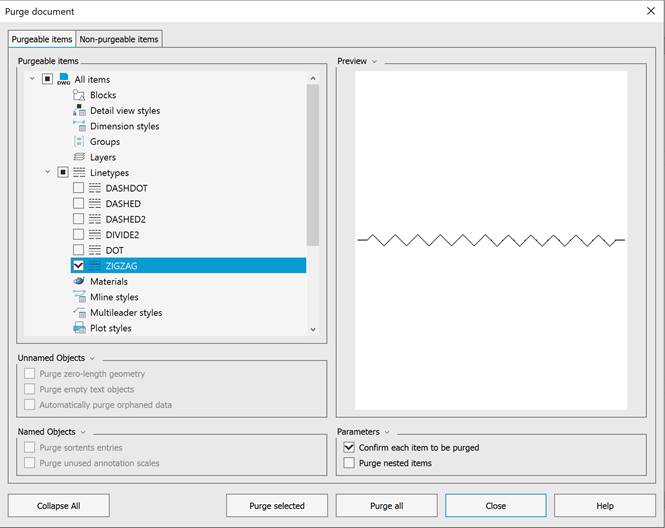
General view of the Purge Document dialog box
The lists of items are organized into a tree structure with categories.
To view or hide elements in a category, double-click the name or click the  (expand) /
  (collapse) icon. The absence of an icon indicates that there are no elements in that category. The Collapse All/Expand All button allows you to hide or display elements in all categories simultaneously.
A preview window for the element selected in the list is located on the right.
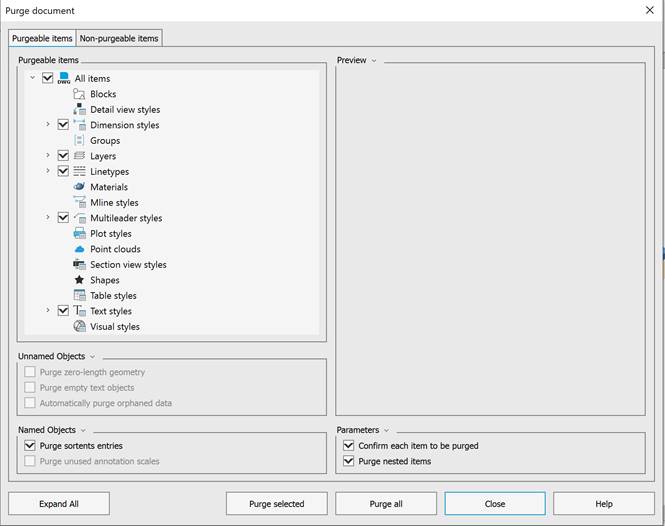
The Purgeable Items tab
The following options are available for named drawing objects:
· Purge sortents entries – enables/disables the removal of empty entries in the sort table (in the object order list controlled by the DRAWORDER command).
· Purge unused annotation scales – enables/disables the removal of annotative scales.
The following options are available for unnamed drawing objects:
· Purge zero-length geometry – enables/disables the removal of zero-length geometry. This checkbox is unavailable if no such geometry is present in the document.
· Purge empty text objects – enables/disables the removal of empty text objects. This checkbox is unavailable if no such objects are present in the document.
· Automaticallyy purge orphaned data – enables/disables the removal of unused line style data from *.dgn format.
Item deletion parameters:
· Confirm each item to be purged – enables/disables the confirmation prompt for each item being deleted:
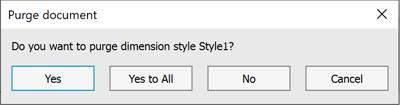
· Yes – confirms deletion of each selected item;
· Yes to All – confirms deletion of all selected items at once;
· No – cancels deletion of the selected item;
· Cancel – exits the purge mode.
· Purge nested items – enables/disables deletion of all unused named objects contained within other unused named objects. The purge is confirmed in a separate dialog box.
There are two options for purging items:
·  – button for deleting all items in the list;
·  – button for deleting selected items. Items and/or categories to be deleted are pre-selected with checkboxes
  in the list.
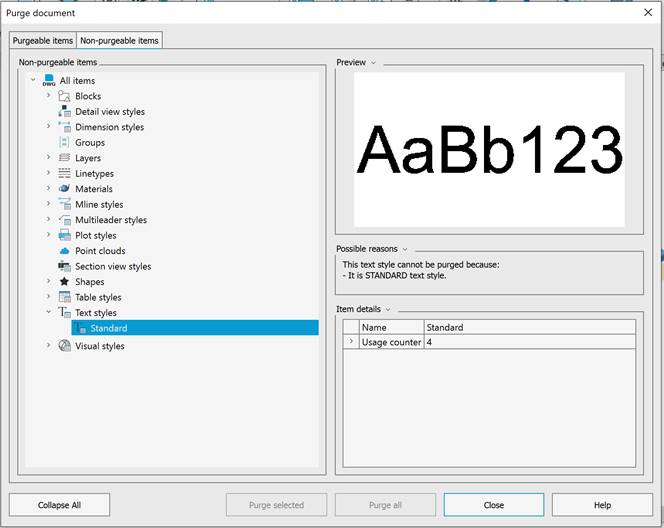
Non-purgeable items tab
The tab displays a list of non-purgeable elements and provides the following information: Preview; Possible reasons; Details (for example, the number of items in the drawing).
Purging a Document Using the Command Line
Command line: -PURGE, -PU
The version of the PURGE command to work from the command line. Contains expanded purging abilities.
Non-dialog Command Option:
Purge document. In the command options, select the type of unused named objects to be deleted.
|
Option |
Description |
|
Blocks |
|
|
DEtailviewstyles |
Detail view styles. |
|
Dimstyles |
|
|
Groups |
|
|
LAyers |
|
|
LTypes |
Line types. |
|
MAterials |
|
|
MUltileaderstyles |
|
|
Plotstyles |
Plot styles. |
|
SHapes |
|
|
textSTyles |
|
|
Mlinestyles |
|
|
SEctionviewstyles |
Section view styles. |
|
Tablestyles |
|
|
visualstyles |
|
|
Regapps |
|
|
Zero-length_geometry |
Zero-length geometry. |
|
Empty_text_objects |
Empty text objects. |
|
Orphaned_data |
Unused line style data from *.dgn format. |
|
ANnotscales |
|
|
Point_clouds |
|
|
sorTTable |
Purging the sorting table, which contains lists of objects ordering (DRAWORDER). Sometimes, there are so many such records that the program starts working with the document much slower. Purging of this list removes empty entries, greatly speeding up your work. |
|
Full |
Automatic full purge of a document. Including the purge of objects having zero-length geometry, empty text objects, annotative scales and registered applications. |
|
All |
Purging unused objects of the same nesting level. Objects having zero-length geometry and empty text objects are not purged. |
Command prompts:
|
Enter type of unused objects to purge [Blocks/DEtailviewstyles/Dimstyles/Groups/Layers/LTypes/MAterials/MUltileaderstyles/Plotstyles/SHapes/textSTyles/Mlinestyles/SEctionviewstyles/Tablestyles/Visualstyles/Regapps/Zero-length_geometry/Empty_text_objects/Orphaned_data/ANnotscales/Point_clouds/Full/All]: |
Select the type of objects to purge, press ENTER. |
|
Enter name(s) to purge <*>: |
Enter names to purge or press ENTER to search for all elements of selected type. |
|
Verify each name to be purged? [Yes/No] <Yes>: |
To confirm purging of each element, select Yes. |
|
Save log of purged items? [Yes/No]: |
A request to create a text file containing complete information about the command’s execution. The main results of the purge are output to the command line. The default folder is C:\Users\User_name \AppData\Local\Temp. When Yes option is selected, a *.txt file will be created, No – the file is not created. |