

 De
De  Es
Es  Fr
Fr  Pt
Pt 

nanoCAD Platform Help
-
-
-
-
-
-
-
-
-
-
-
-
-
-
-
-
-
-
-
-
-
-
-
-
-
-
-
-
-
Big Radius
-
-
-
-
-
-
-
-
-
-
-
-
-
-
-
-
-
-
-
-
-
-
-
-
-
-
Big Radius
 Ribbon: Home, Annotate - Dimensions >
  Auto
Auto
Ribbon: Home, Annotate – Dimensions >  Big Radius
Menu: Dimensions –  Big radius
Toolbar: Utilities –
Context menu when calling any dimension: big RAdius
 Command line: DIMJOGGED, DJO
The big radius command creates jogged dimensions for circles and arcs.
To draw the big radius:
1. Place the mouse cursor over the arc to highlight it dynamically. When setting a radial dimension using the Auto command, an auxiliary marker  appears. Left-click to confirm the selection:
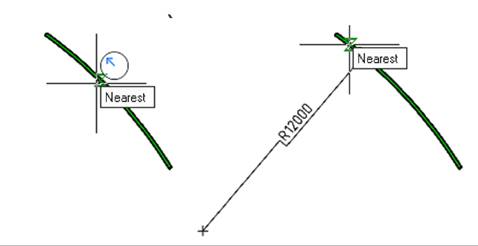
2. Select the location of the dimension. Left click to lock the selected position:
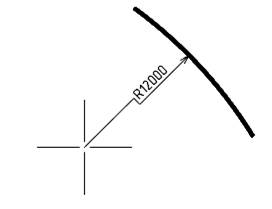
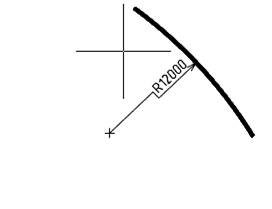
3. Select the location of the text. Left-click to fix the selected position:

Info: NanoCAD is a simple, low cost, and yet professional, CAD platform for PC, that delivers an outstanding user experience by providing enhanced performance, full capability, a classic interface and native.dwg format support. nanoCAD has been built to deliver design and project documentation for all industries. nanoCAD includes a full suite of basic and advanced CAD tools for 2D/3D design and creating industry-standard DWG-compatible CAD files. Our freeware supports groundbreaking, collaborative and customizable features to enhance your efficiency, and includes a few API's, allowing anything from routine task automation to complex CAD application development. You may try nanoCad for free, using the links below, and purchase later, if you like it.